
A custom mission groups SocialTalent courses and your own custom courses into one unit of learning. You can then add the mission to a custom Learning Path.
Important notes
-
Only company admins can build custom missions.
-
You can only add published custom courses. A draft course doesn't appear in the mission builder. See How do I build a custom course?
Step 1: Choose your courses
-
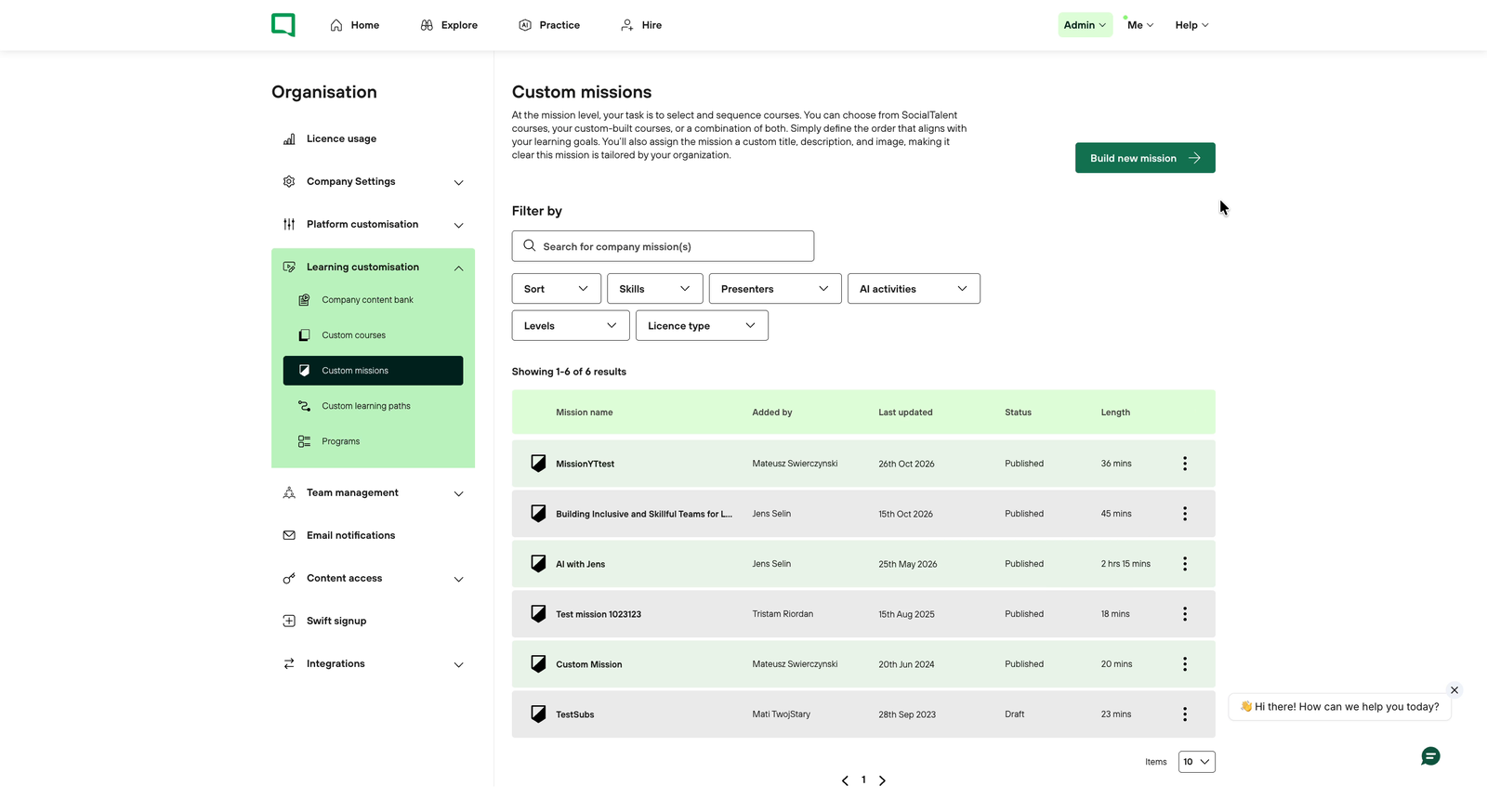
Go to Admin → Organisation → Learning customisation → Custom missions.
-
Click Build new mission and choose Build from scratch. You start with no courses selected and a mission duration of zero.
-
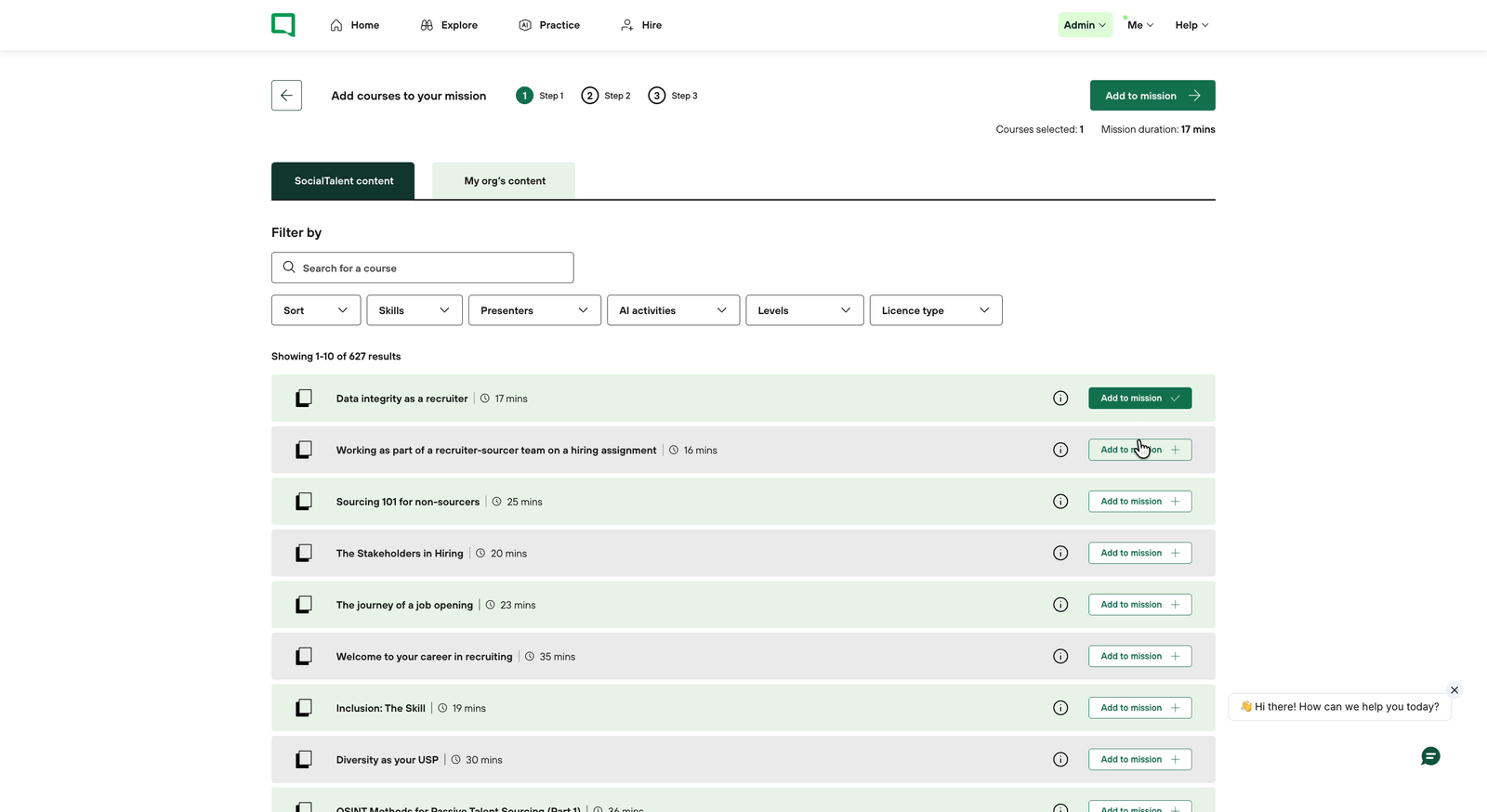
Click Add to mission on each course you want. The SocialTalent content tab lists our courses; the My org's content tab lists your custom courses.
-
The number of courses selected and the mission duration update as you go. When you're done, click Add to mission at the top right.
You can also choose Standard builder to start from an existing mission. It works the same way as for custom courses: click Select and customise on the mission you want to use as your template.
Step 2: Customise the mission
-
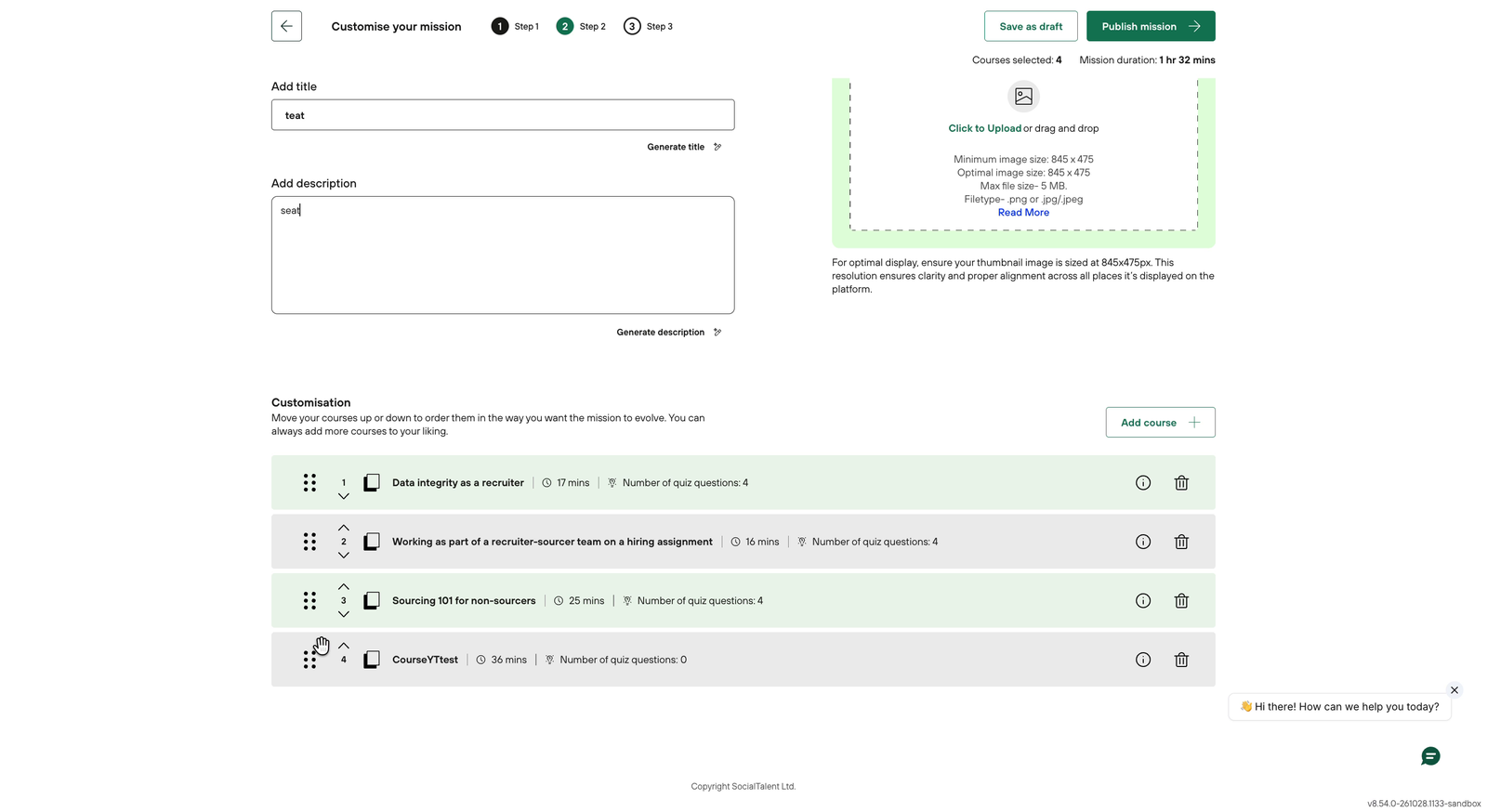
Add a title and description. You can also click Generate title or Generate description to get a suggestion.
-
Upload a custom thumbnail if you want one.
-
Check the order of the courses and move them up or down if needed.
-
Click Add course if something is missing, or remove a course with the bin icon.
Step 3: Review and publish
-
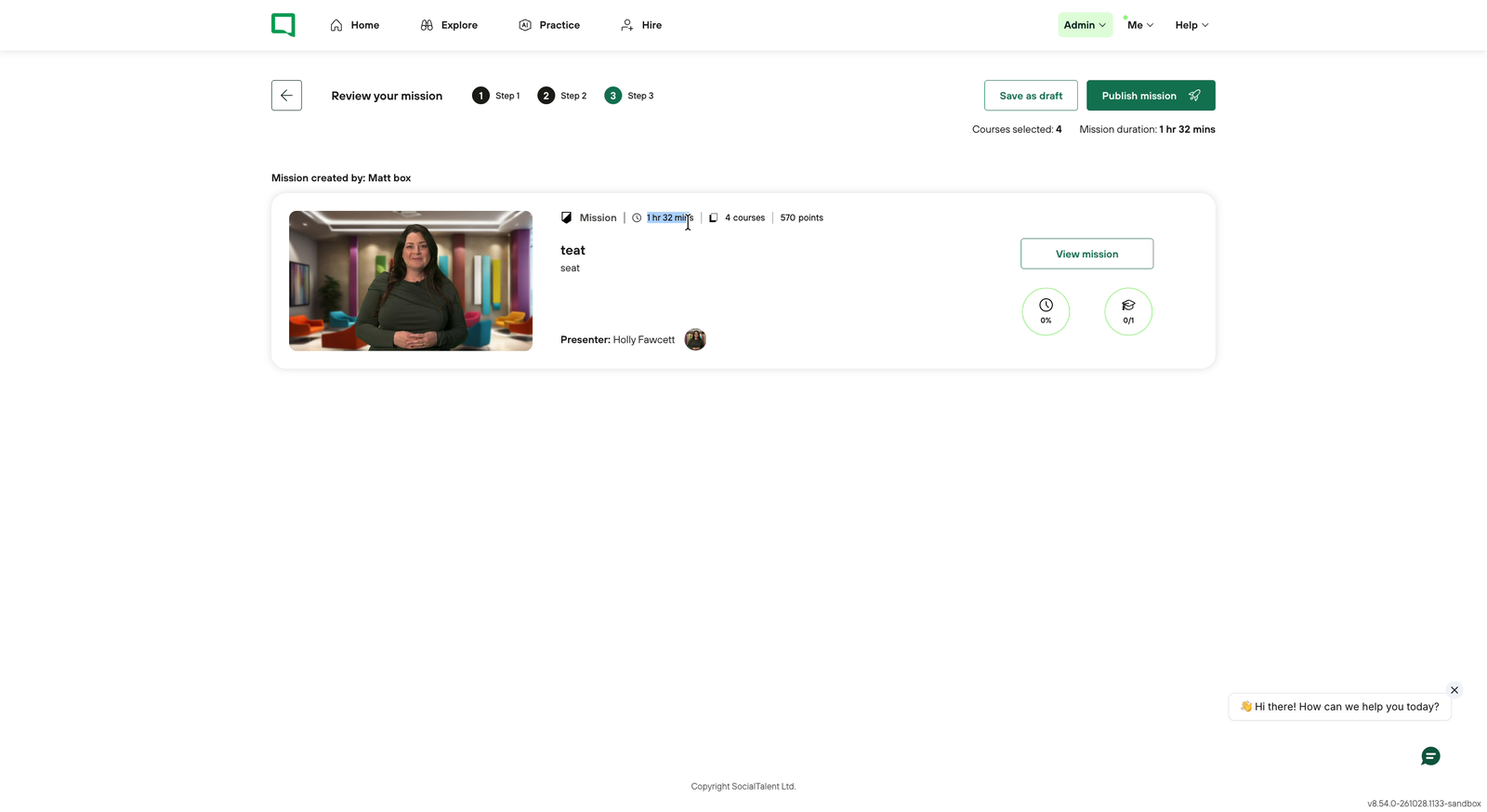
Click Publish mission to open the review screen. It shows the thumbnail, the mission length, the number of courses and the points available.
-
Check the details, then click Publish mission again.
A success message confirms the mission has been published. You can now add it to a custom Learning Path. If you're not ready, click Save as draft instead.
Next step: How do I build a Learning Path?
If you have any questions, contact us at support@socialtalent.com.