
A custom course combines SocialTalent episodes with your own learning items. You can start from an existing course or from scratch, remove what you don't need, and preview the course before you publish it.
Important notes
-
Only company admins can build custom courses.
-
To use your own videos, PDFs or links, add them to the Company content bank first. See How does Premium Custom Content work?
Step 1: Choose how to start
-
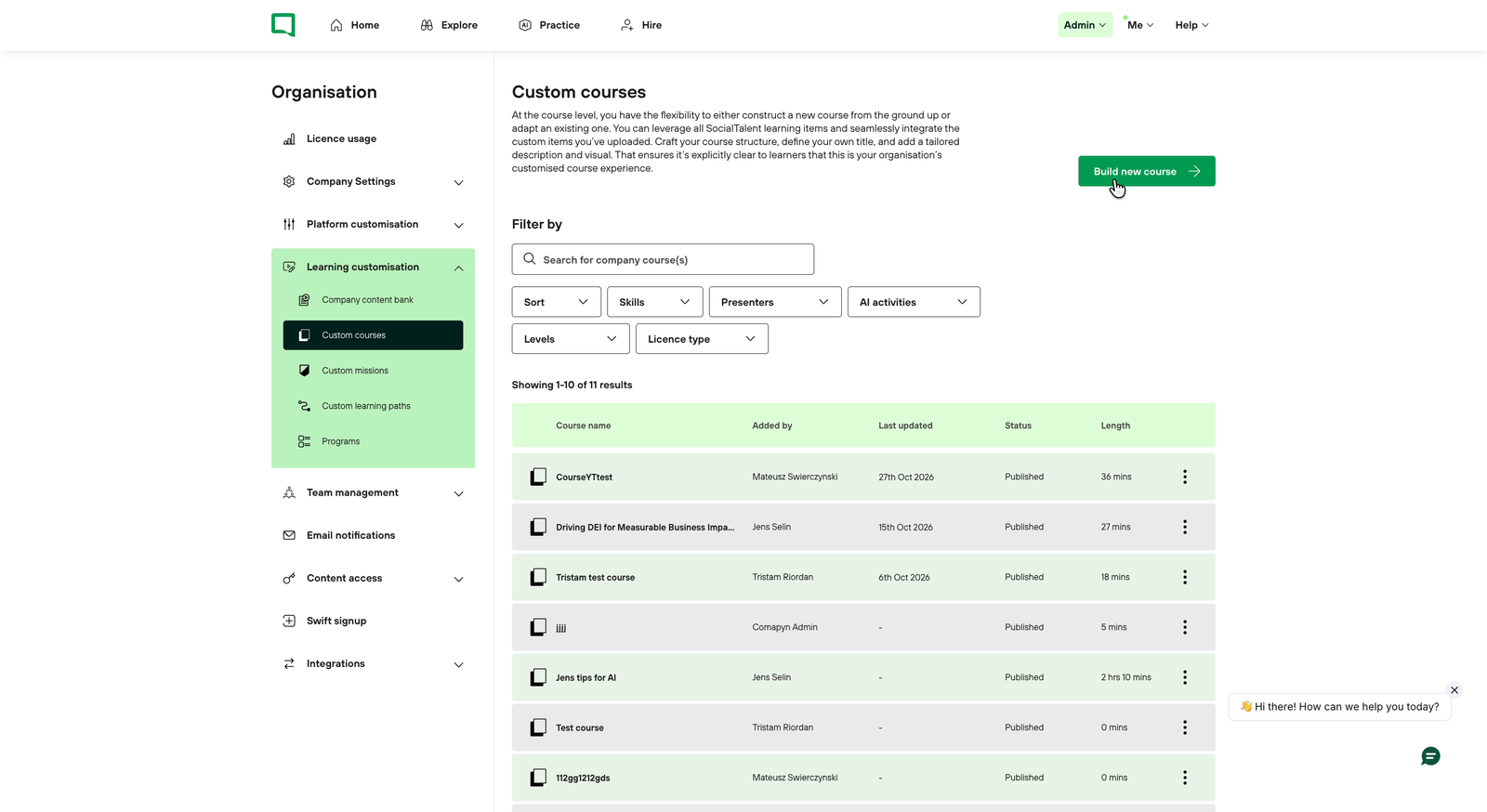
Go to Admin → Organisation → Learning customisation → Custom courses.
-
Click Build new course at the top right.
-
Choose Standard builder to start from an existing course, or Build from scratch to start with an empty course.
If you chose the standard builder:
-
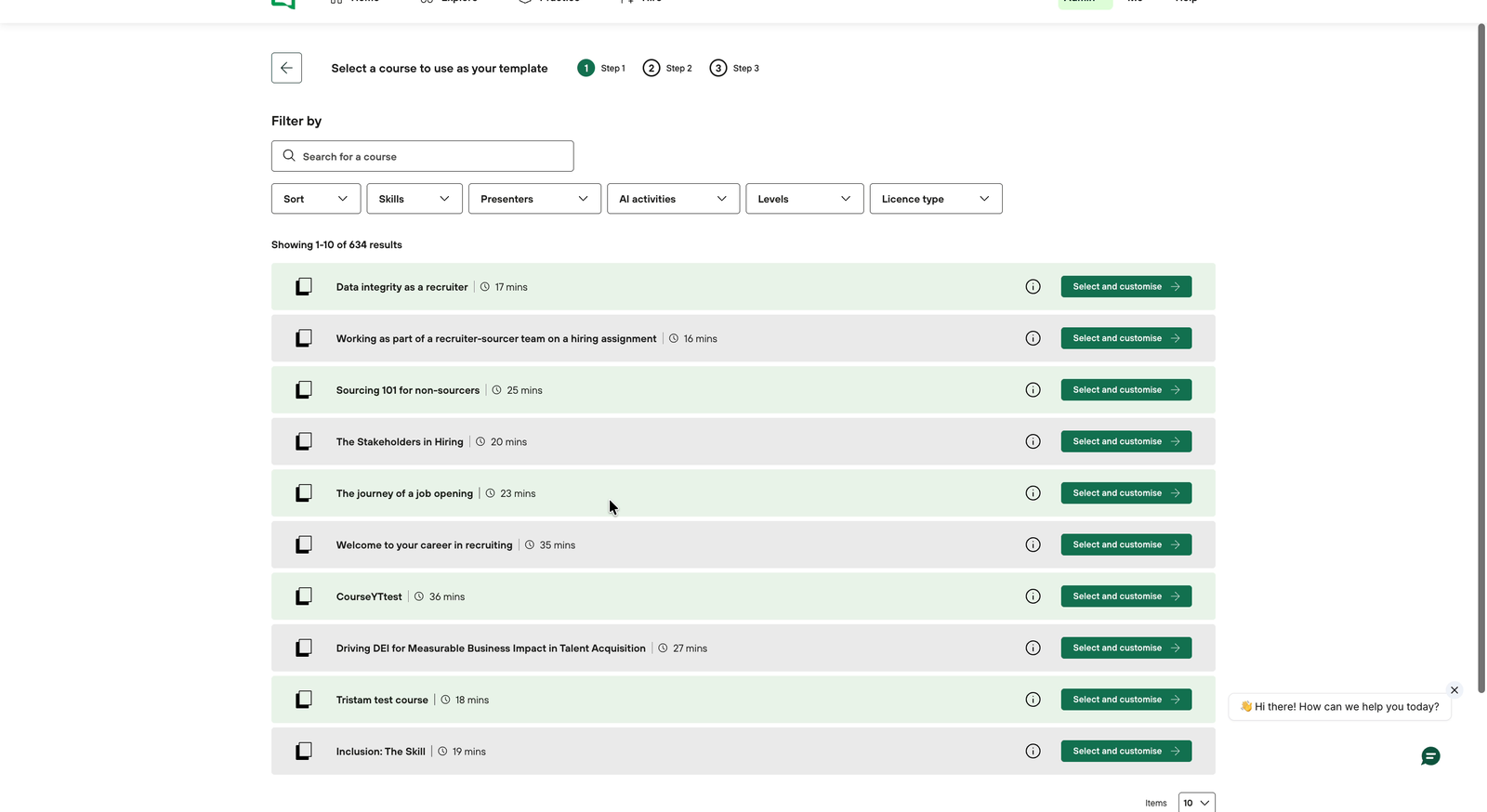
Browse SocialTalent courses and your own custom courses. Use the filters to narrow the list, or click the info icon to see more about a course.
-
Click Select and customise on the course you want to use as your template.
Step 2: Customise the course
-
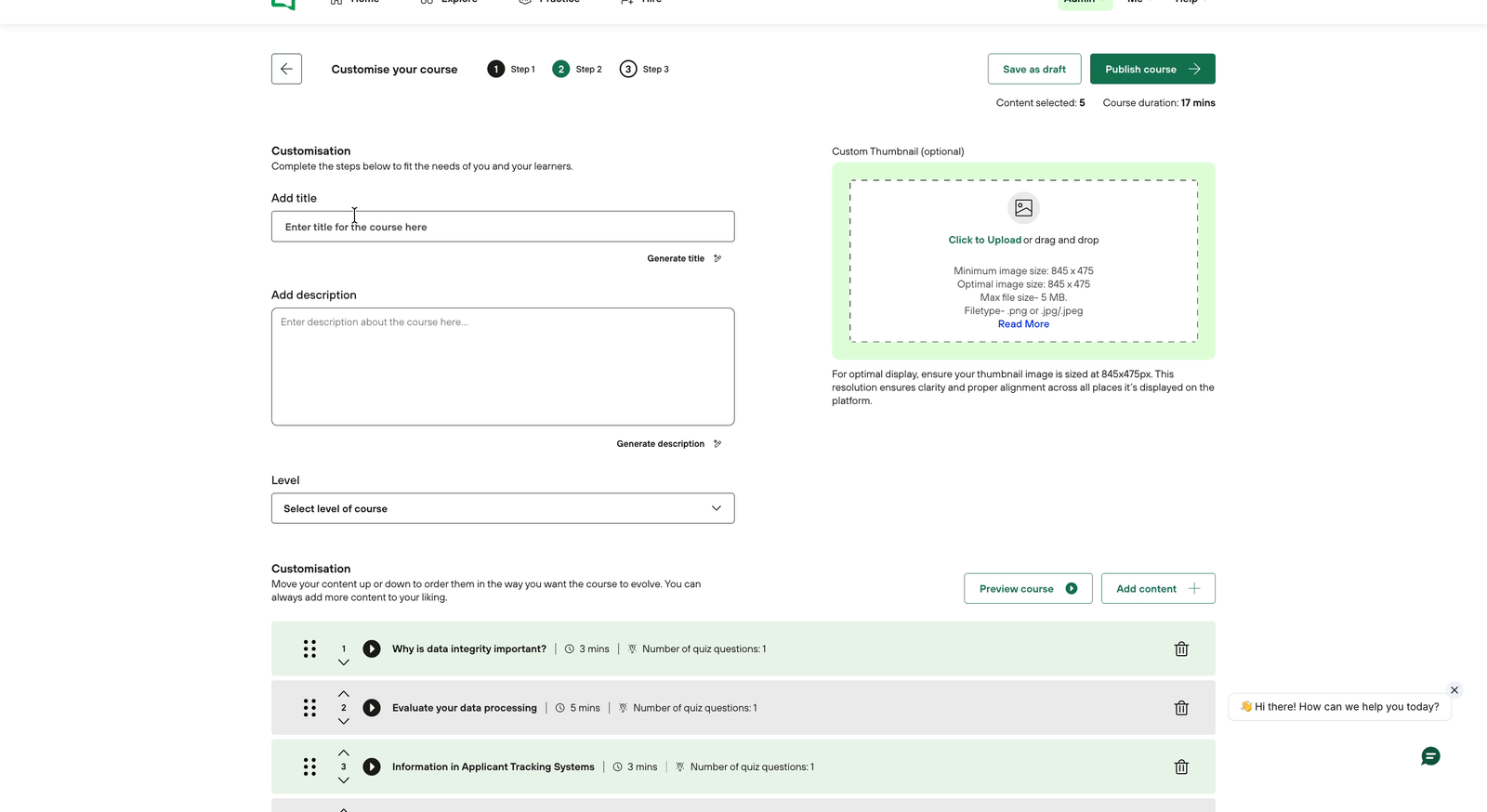
Add a title and description. You can also click Generate title or Generate description to get a suggestion.
-
Choose the level of the course.
-
Upload a custom thumbnail if you want one. Use a PNG or JPG of 845 × 475 pixels, up to 5 MB.
-
Remove any learning item you don't need with the bin icon.
-
Move items up or down to put them in the right order. Each item shows its length and number of quiz questions.
Add more content
-
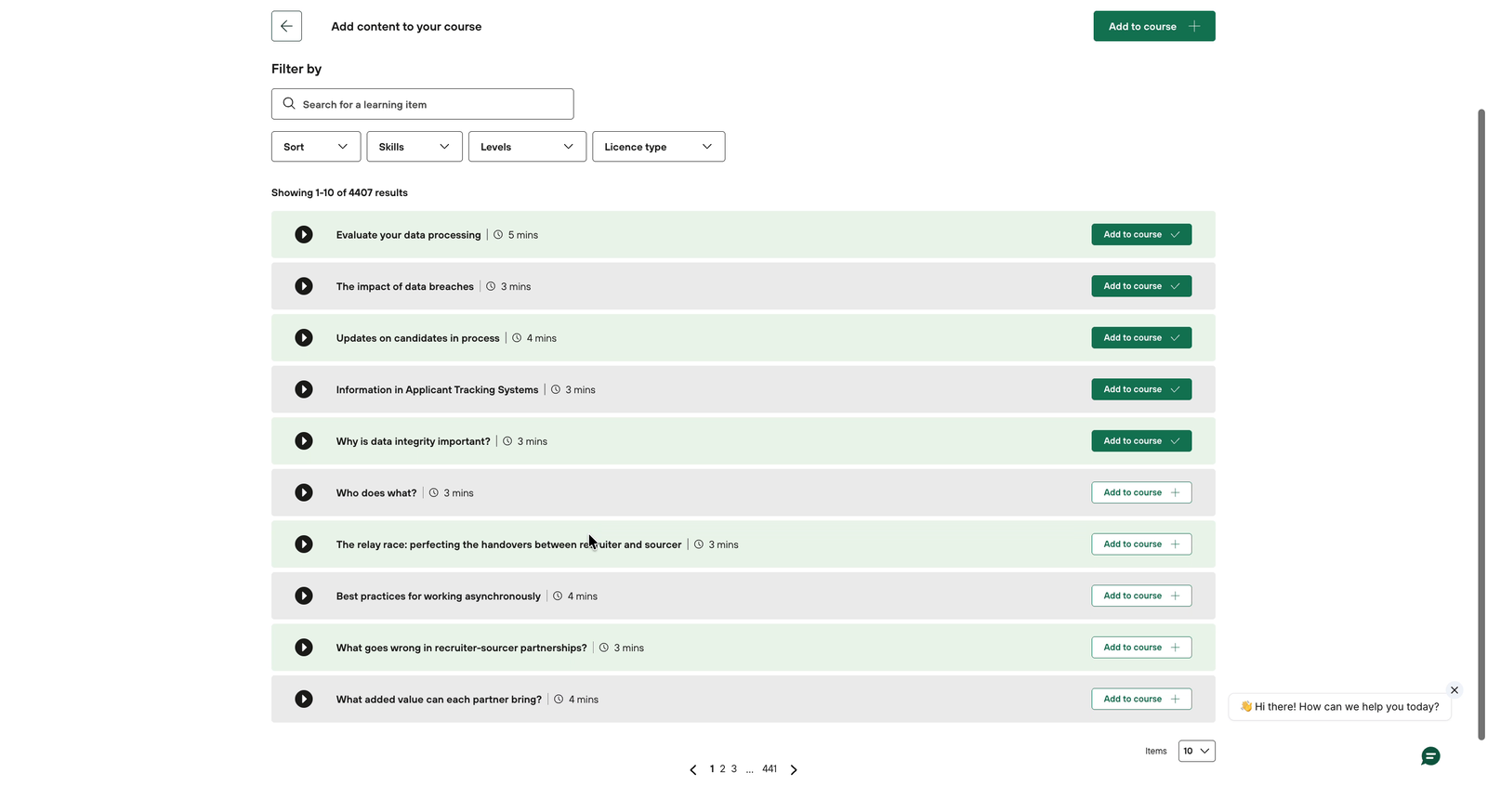
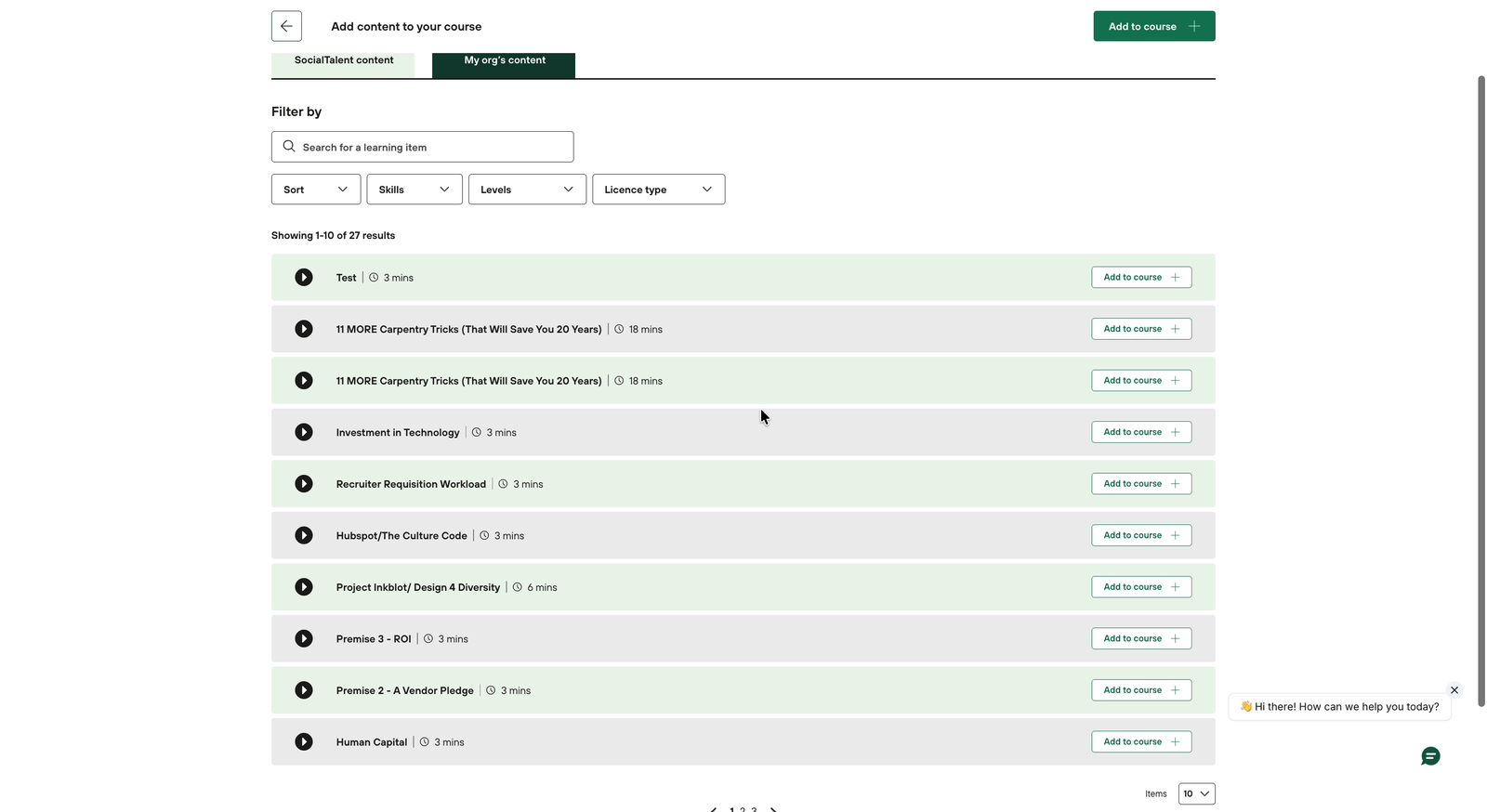
Click Add content to see every available episode. Items already in the course show a tick.
-
Click Add to course on any item you want to add.
-
Switch to the My org's content tab to add your own learning items from the content bank.
-
Click Add to course at the top right to go back to the course.
Preview the course
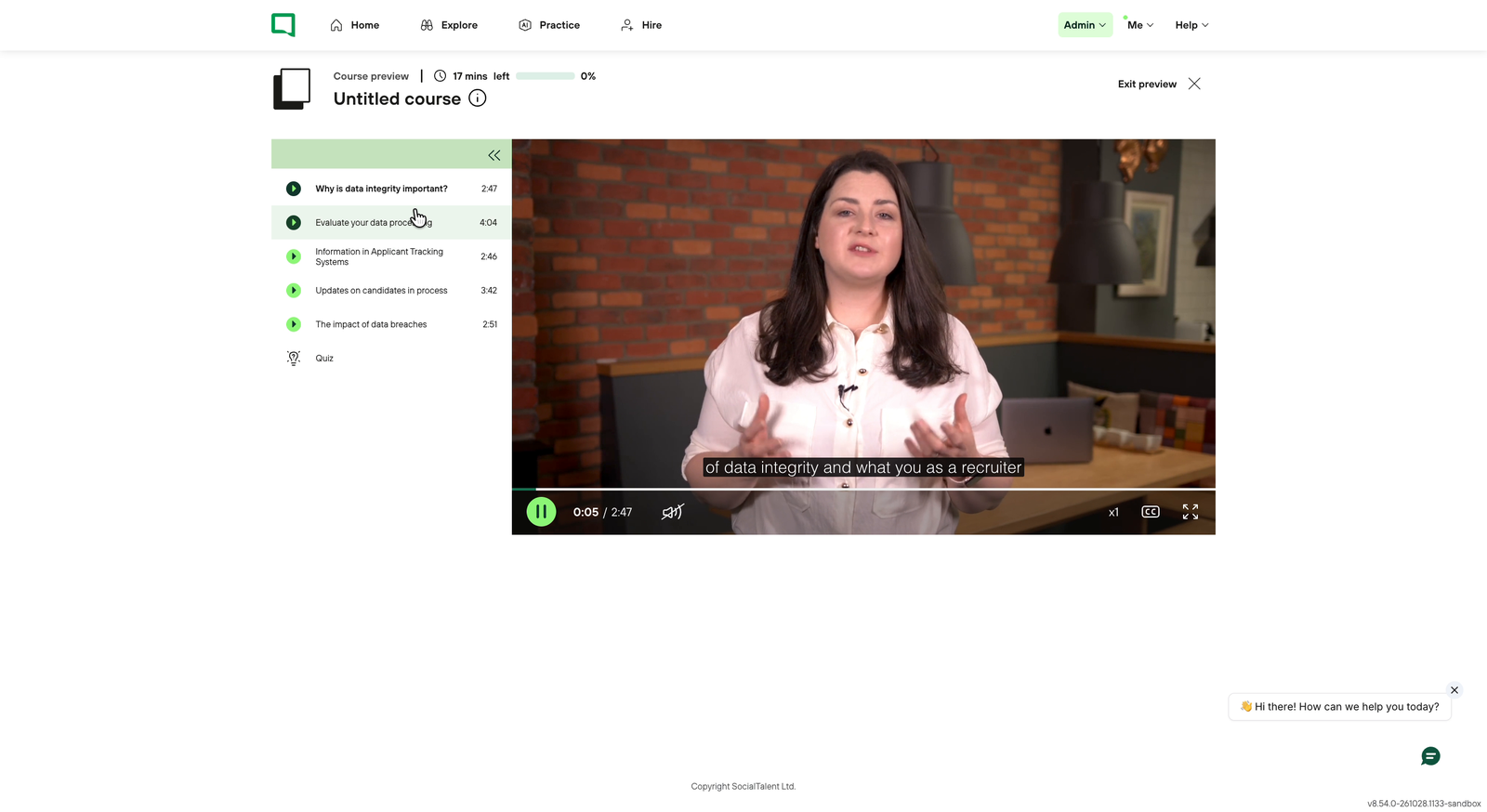
Click Preview course to see the course as a learner will, including the order of items and the end-of-course quiz. Click Exit preview at the top right to go back.
Step 3: Save or publish
-
Save as draft keeps the course hidden. A draft doesn't appear in any builder, so you can't add it to a mission yet.
-
Publish course makes the course available to add to a custom mission.
To change a course later, find it in Custom courses, click the three dots at the end of its row and choose the edit option.
Next step: How do I build a custom mission?
If you have any questions, contact us at support@socialtalent.com.