
This article explains how to connect a Zoom account at company level and how to add and configure the Interview Intelligence app inside a Zoom meeting.
Connect Zoom and use Interview Intelligence in meetings
Before you start
-
You must have access to Company Settings
-
You need valid Zoom account credentials
Connect a Zoom account
Follow these steps to link Zoom to your company.
-
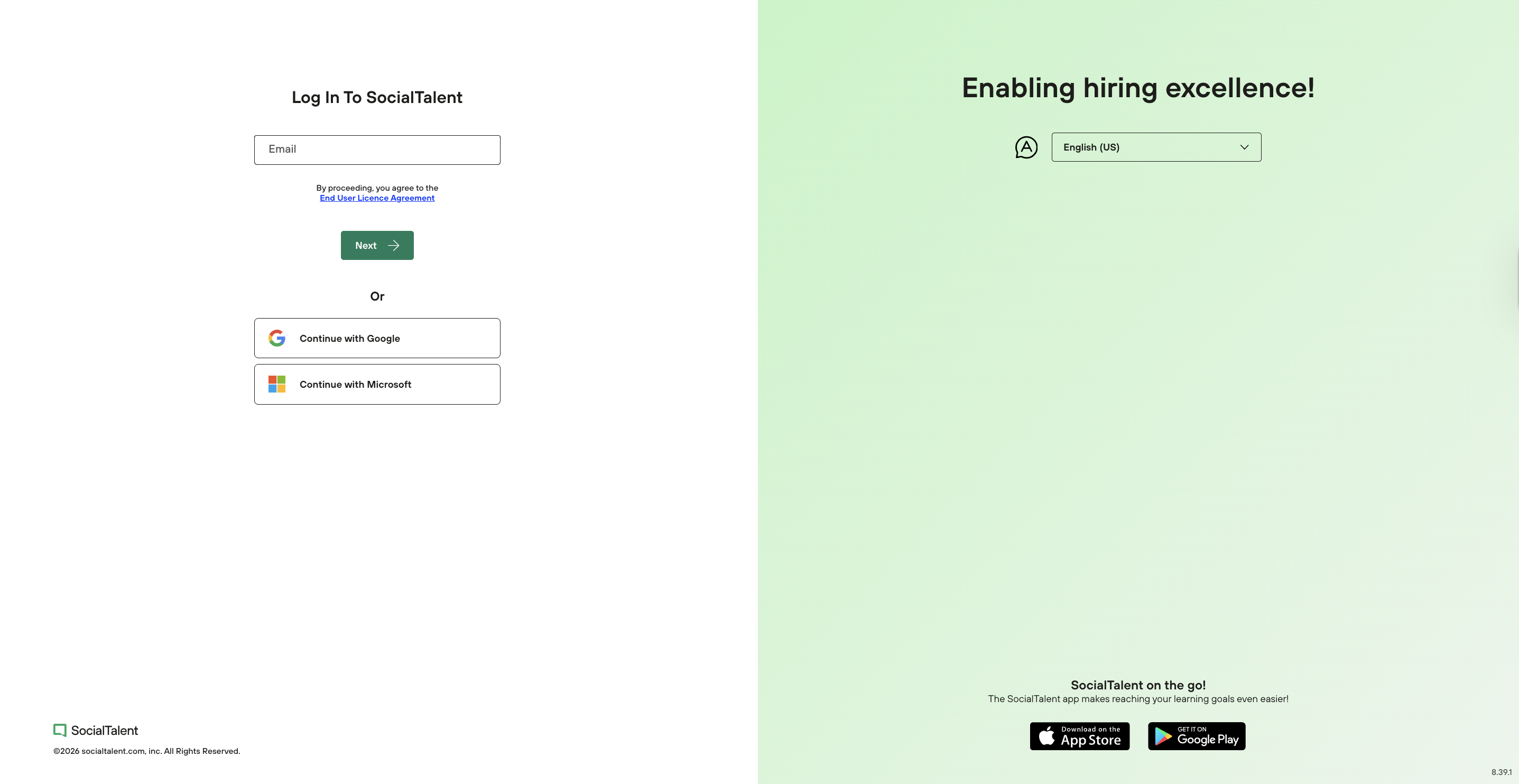
Log in to SocialTalent → https://app.socialtalent.com
-
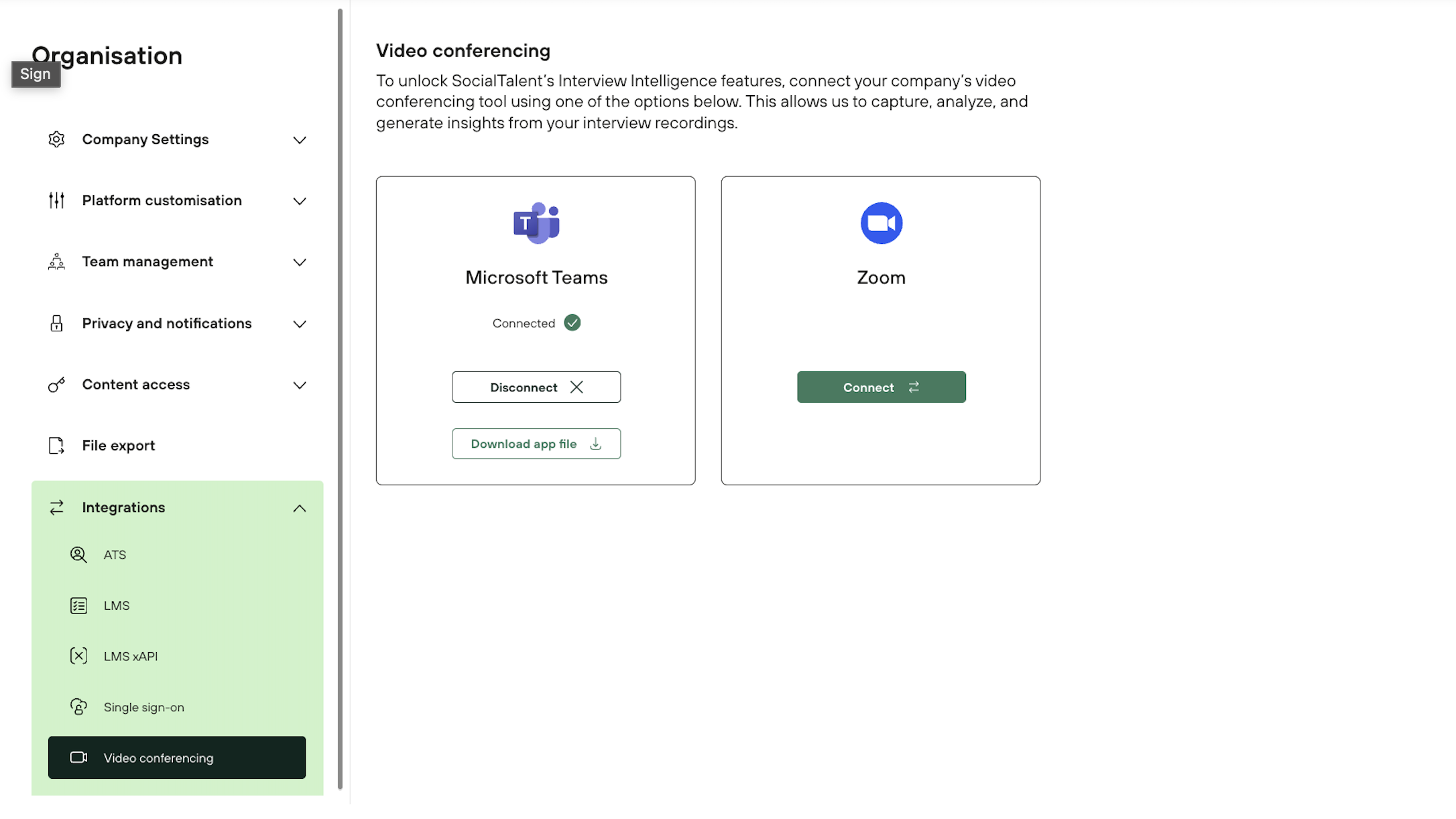
Open Admin → Organisation → Integrations -> Video conferencing
-
In the Zoom section, click Connect
-
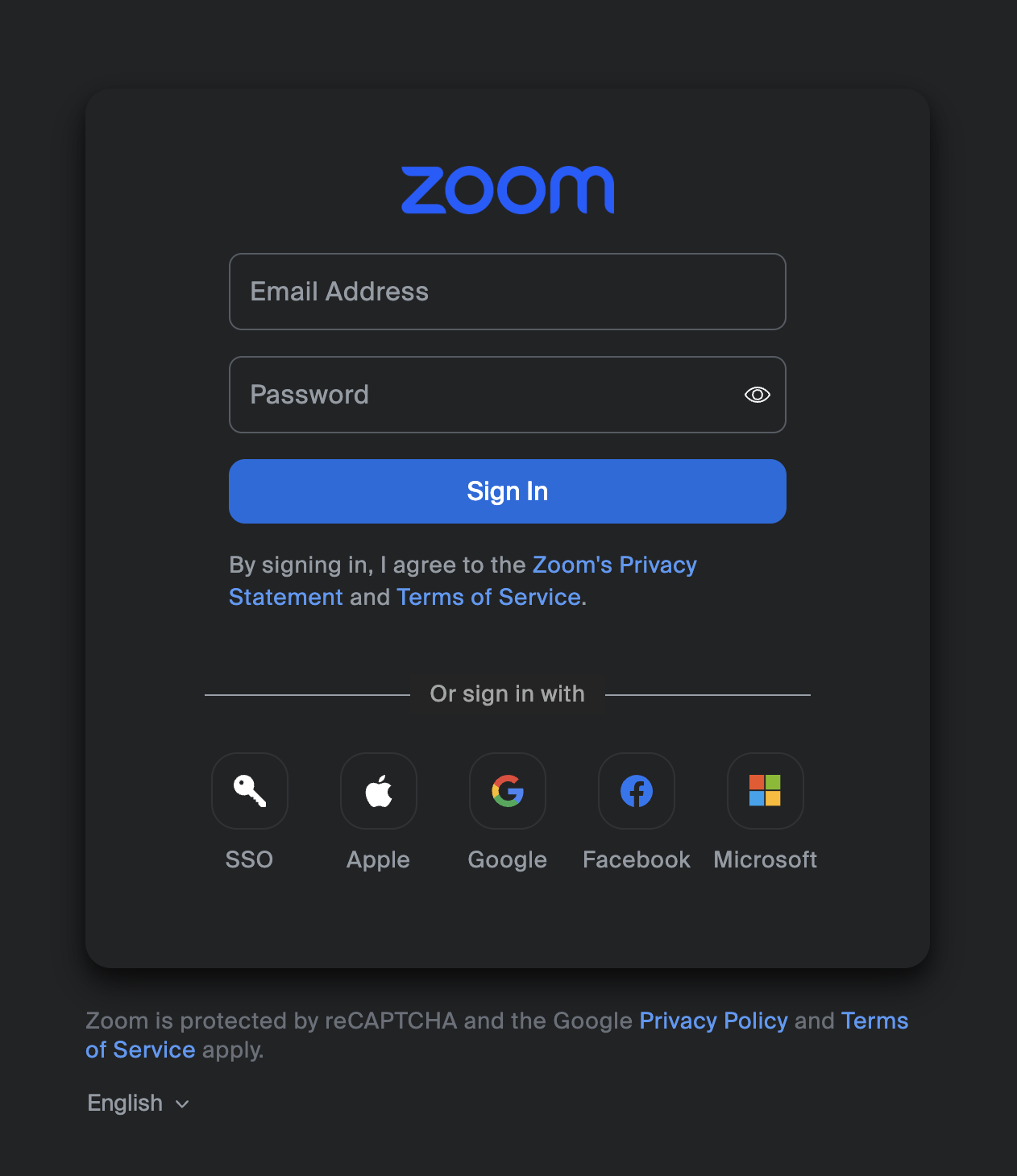
A new tab opens. Sign in to your Zoom account
-
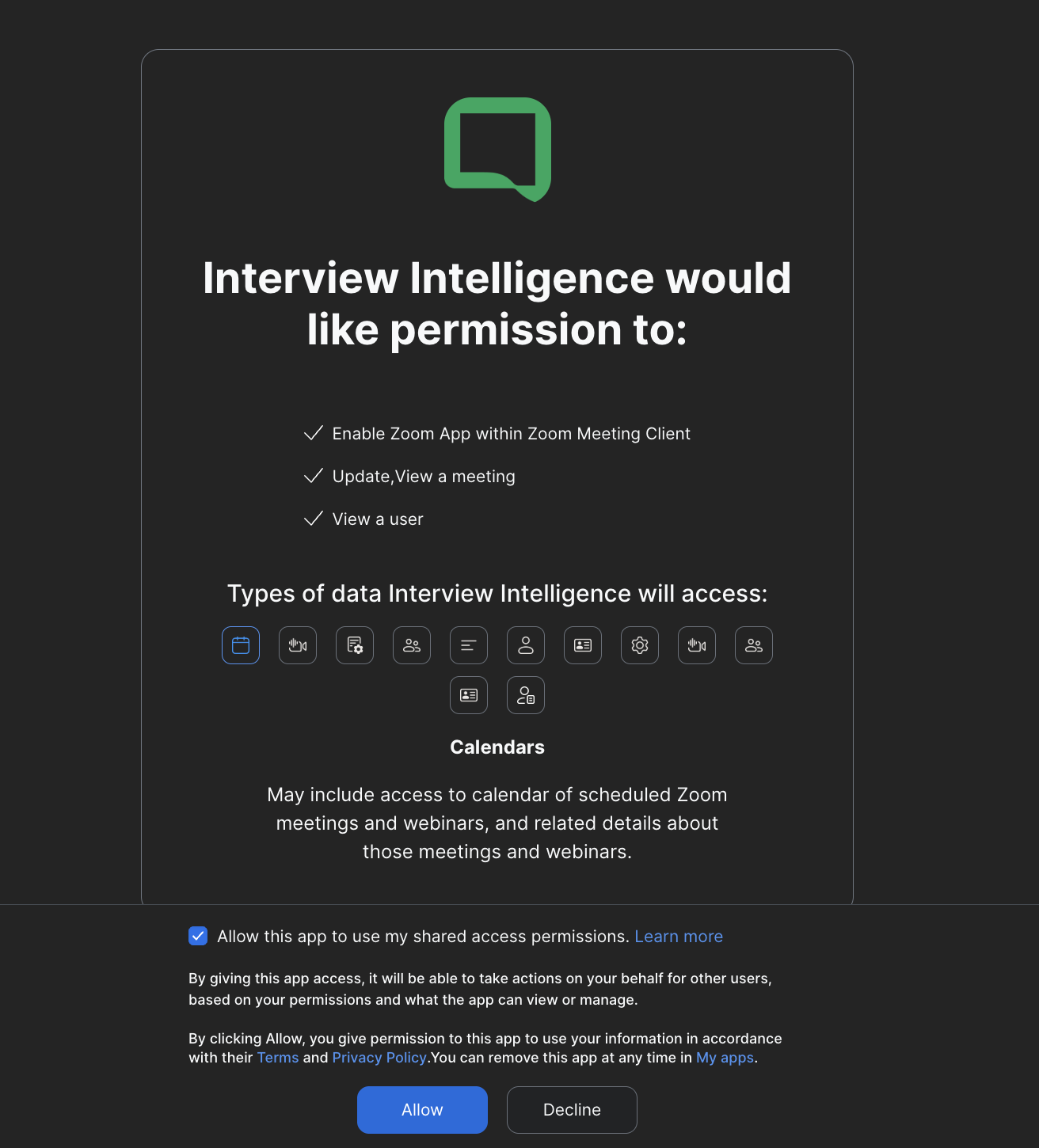
Review and accept the permissions
-
Confirm the connection
Once complete, Zoom is connected and available for interviews.
Add the Interview Intelligence app to a Zoom meeting
-
Start or join a Zoom meeting
-
Open the Apps panel in Zoom
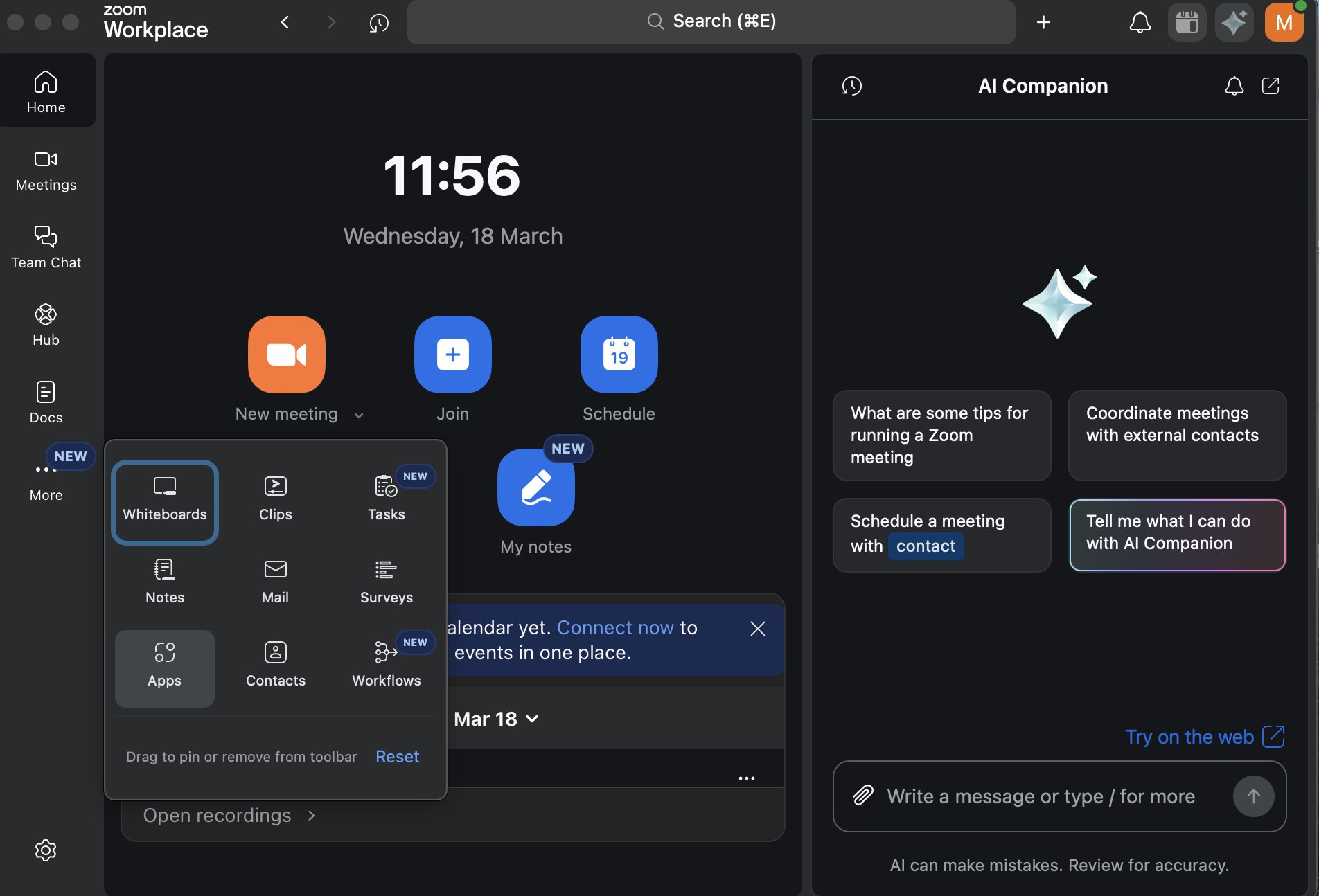
-
Search for and select Interview Intelligence
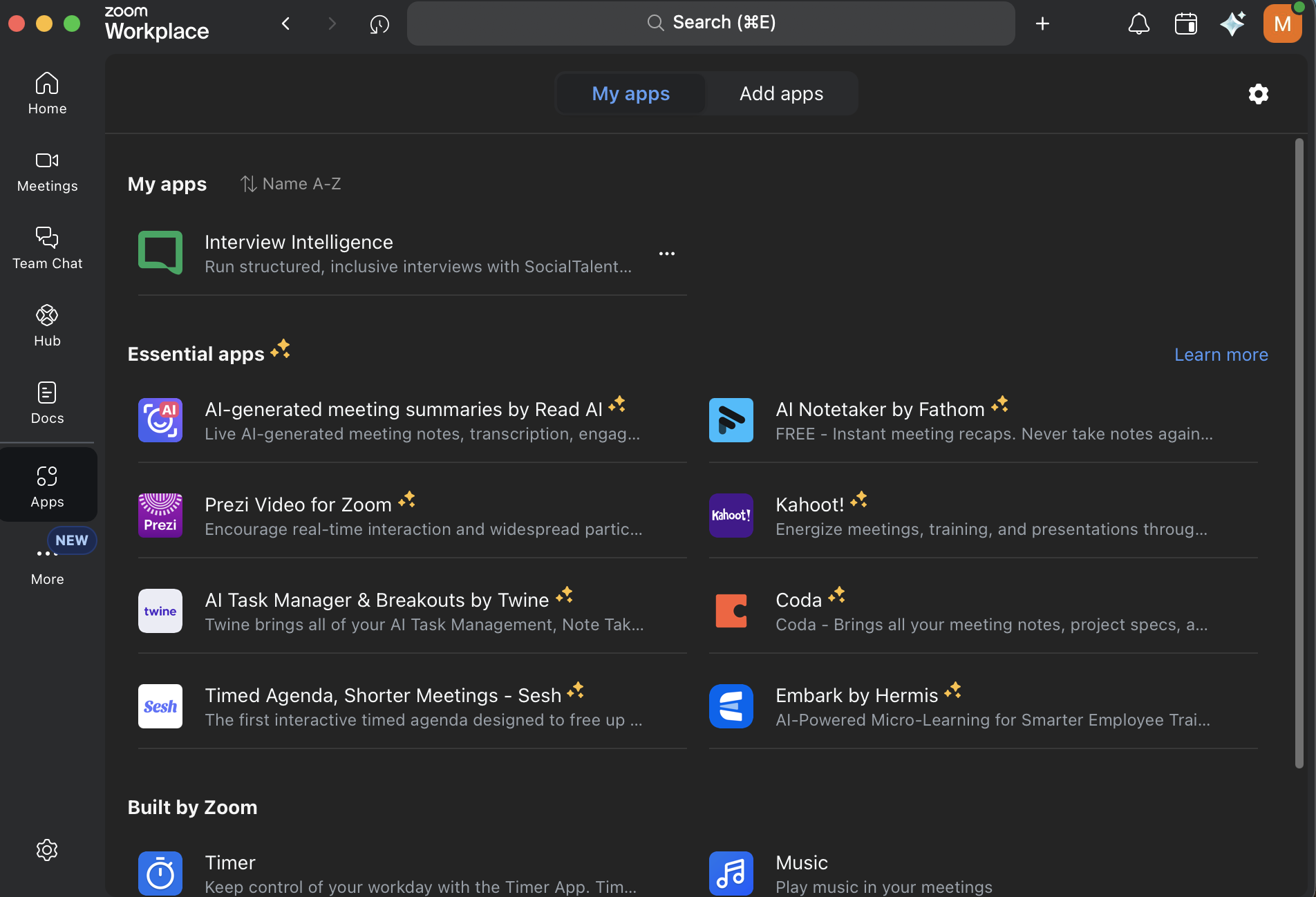
-
Add the App to the meeting
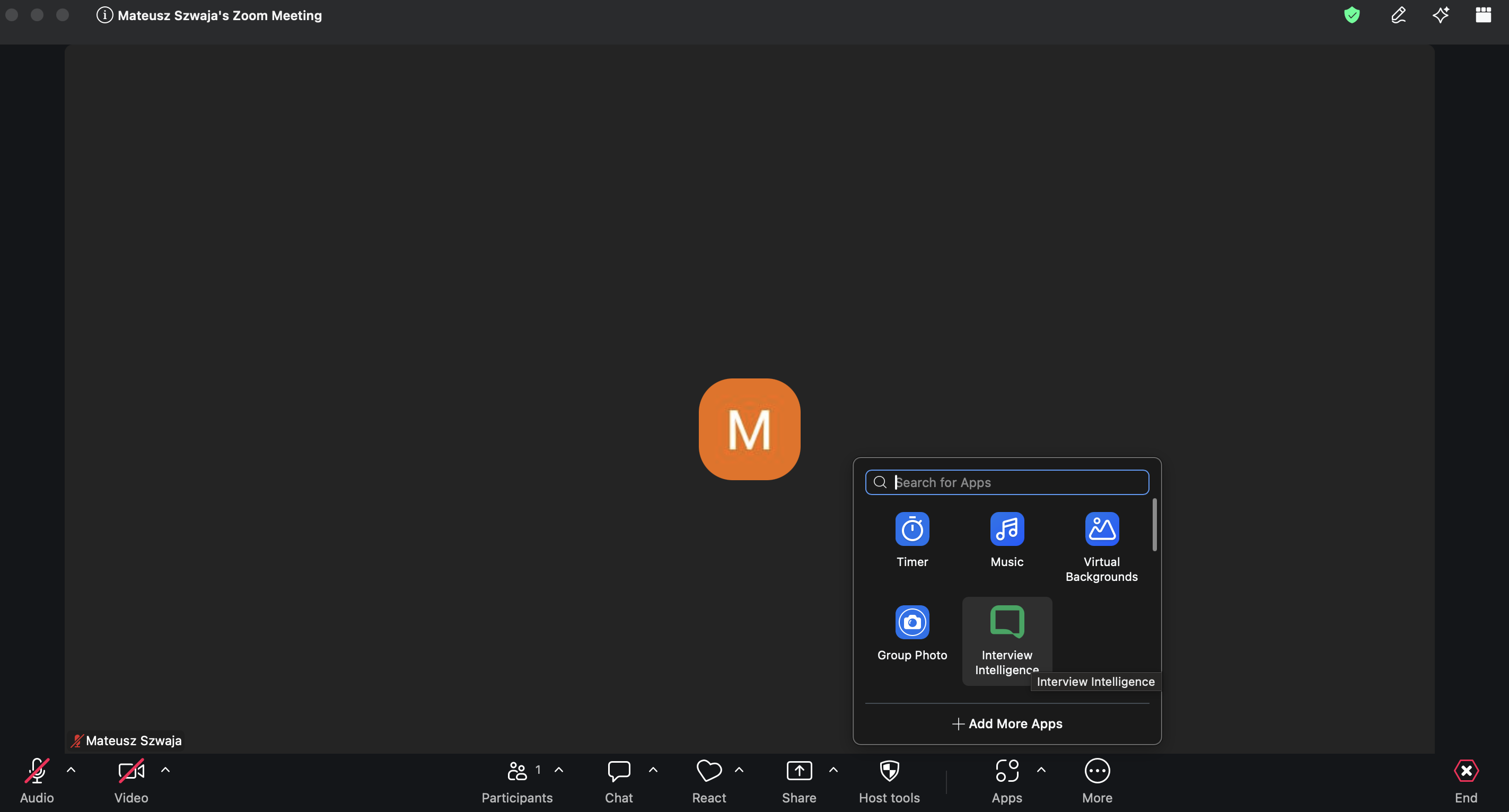
The Interview Intelligence App will open inside the meeting.
Configure the Interview Intelligence App in the meeting
When the app opens, you will see the setup window.
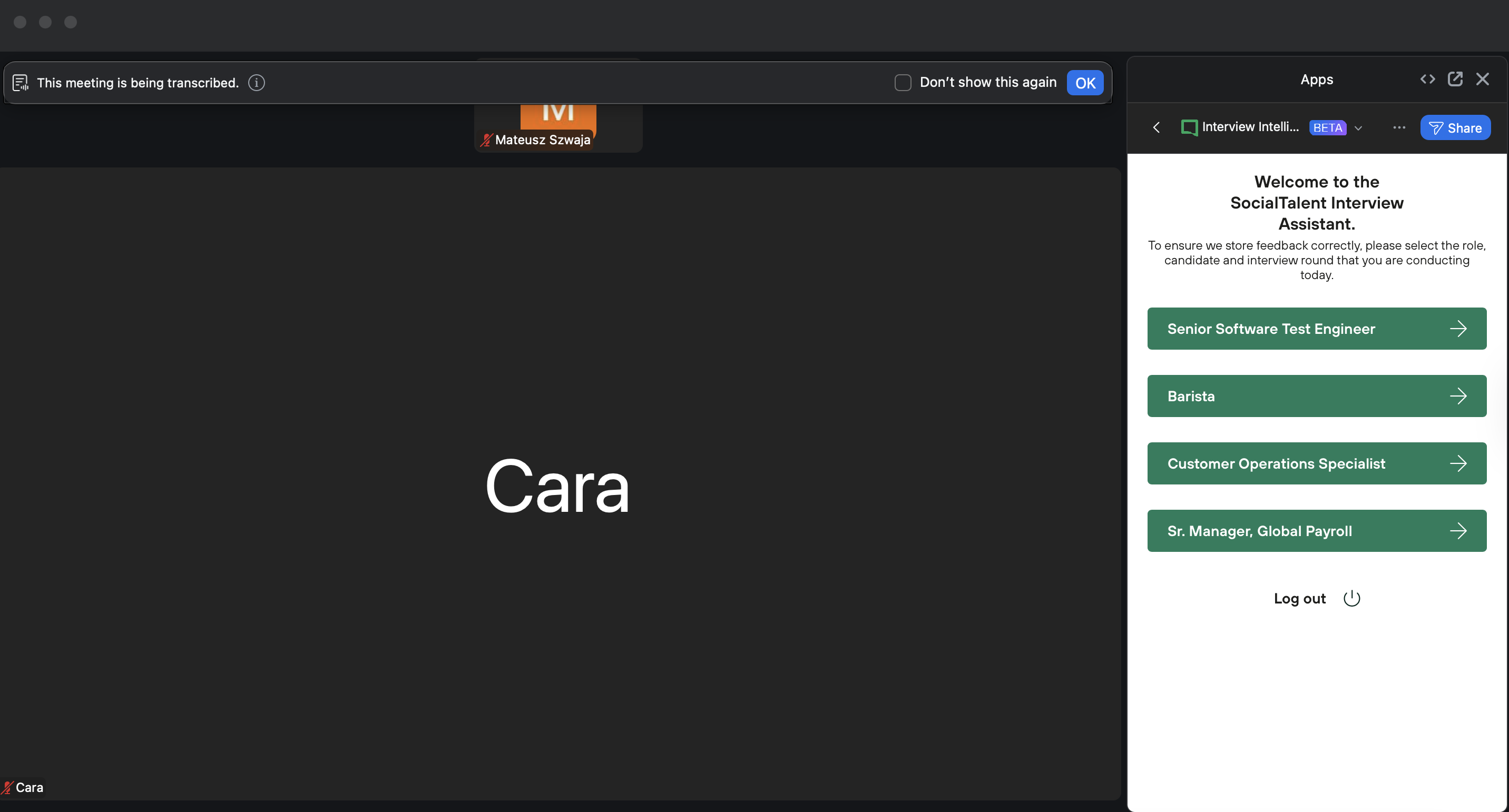
If fields are not selected
-
Select:
-
Role
-
Candidate
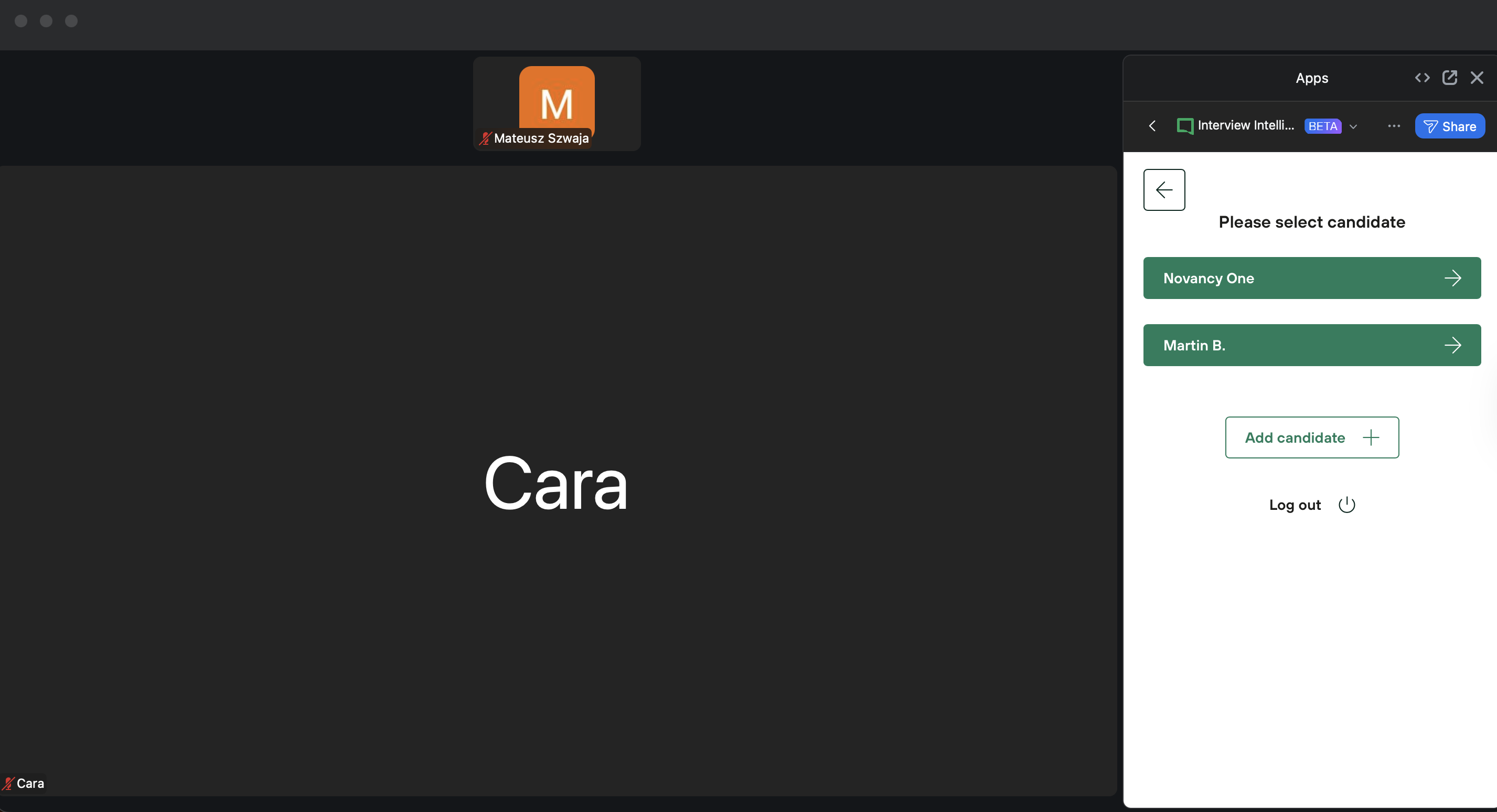
-
Interview round
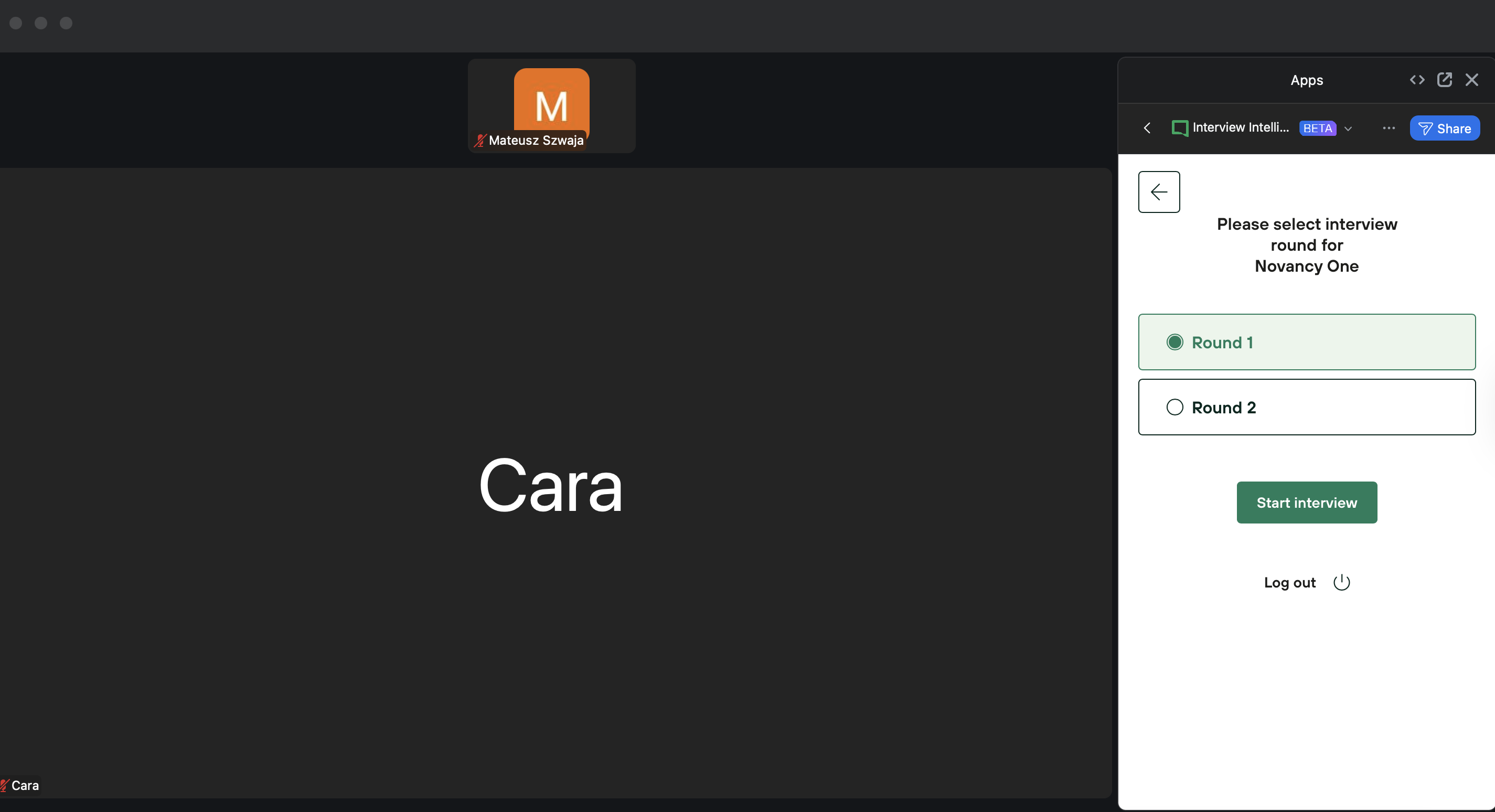
-
-
Click Start Interview
The Interview Intelligence app will now appear in the Zoom meeting sidebar.
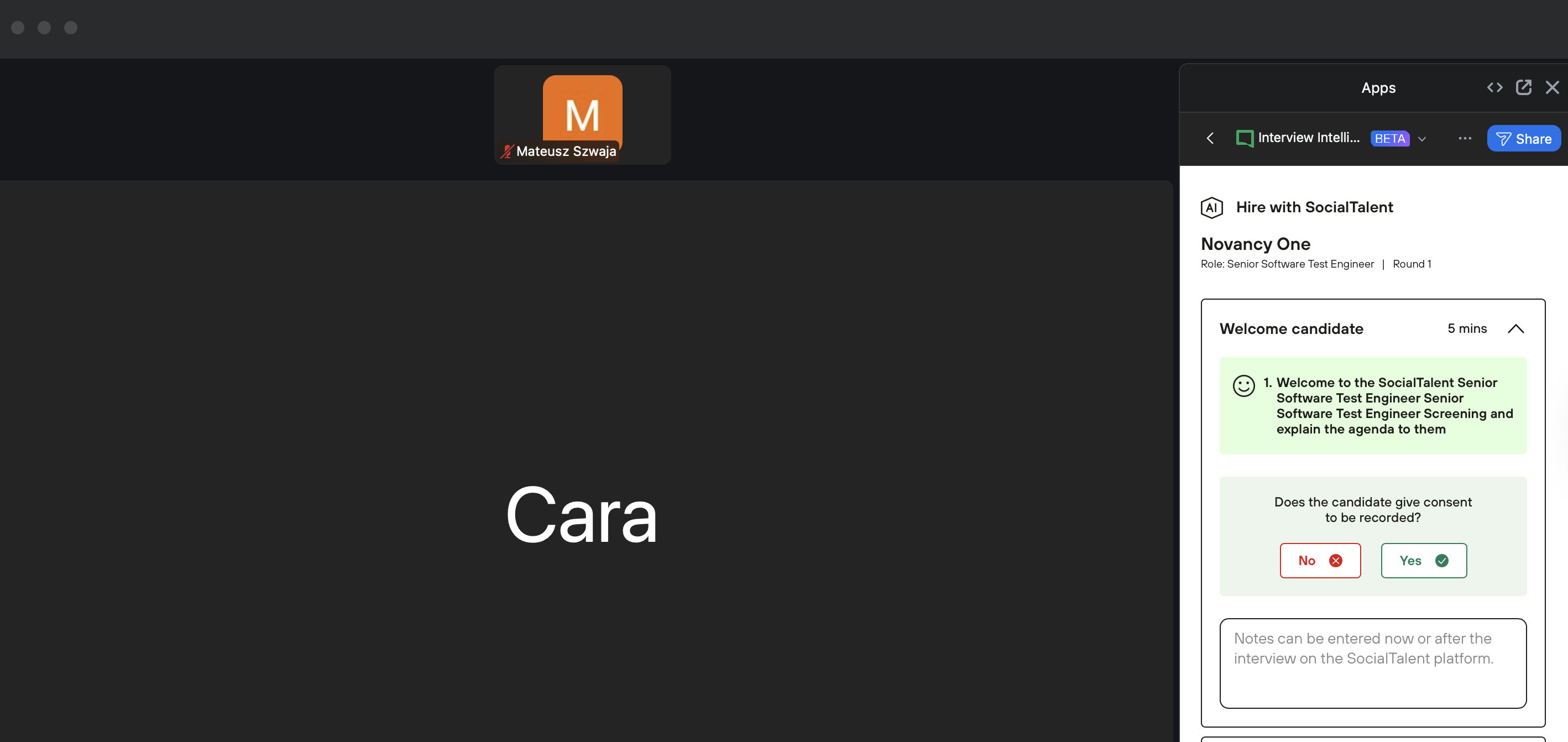
Summary
After setup, you can:
-
Run interviews directly in Zoom
-
Follow the interview plan
-
Capture notes and scores during the meeting
See: