
This article explains how to use the Interview Intelligence app during a Zoom interview.
Running interviews inside Zoom
Before you start
-
The Zoom integration must be connected to the company.
-
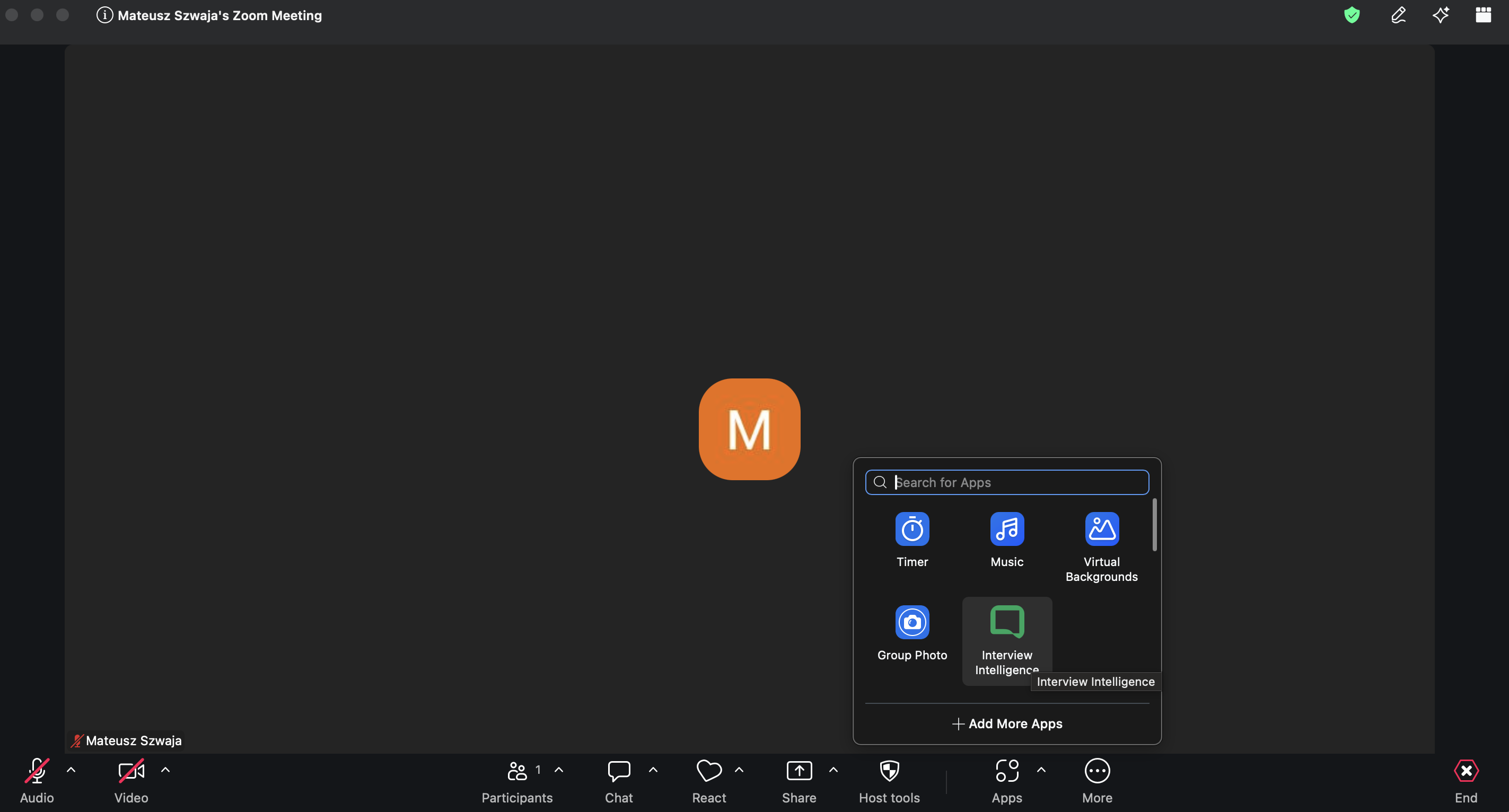
The Interview Intelligence app must be added to the Zoom meeting.
Start the interview on Zoom
-
Start or join the Zoom meeting
-
Open the Interview Intelligence app from the Zoom sidebar
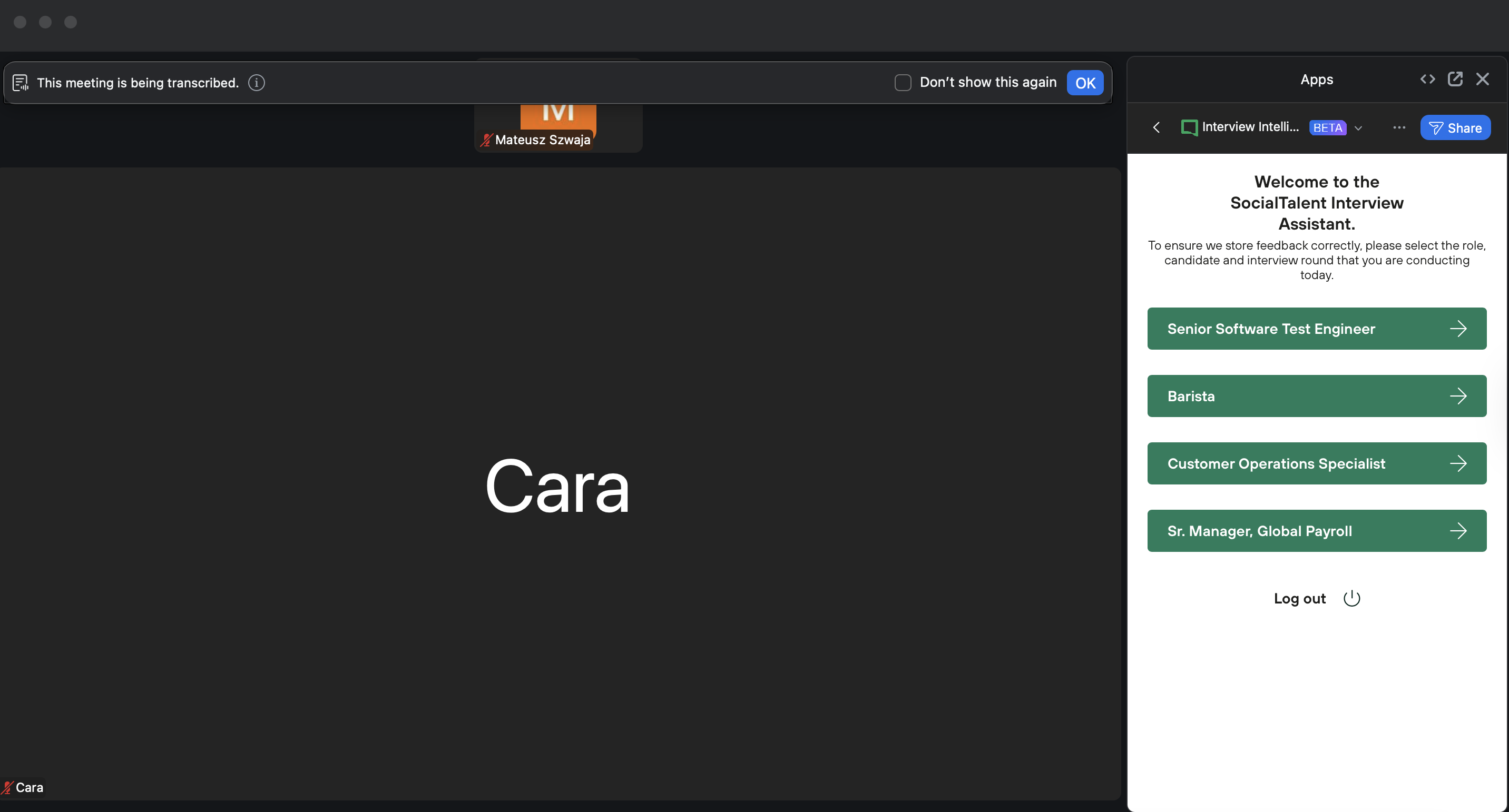
Recording and consent
When the meeting starts, a recording bot (Recall.ai - The API for Meeting Recording) will automatically join the call.
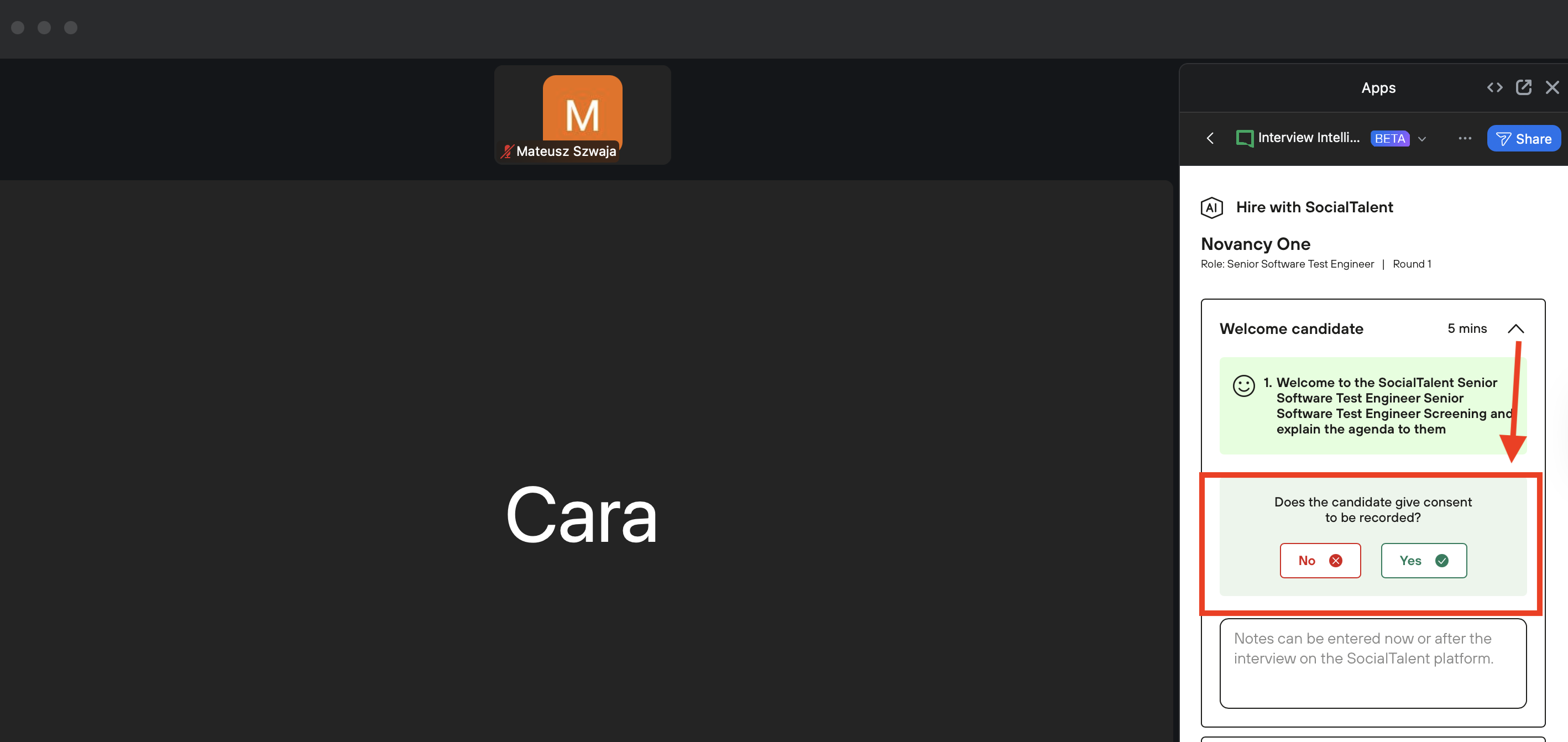
Capture candidate consent
In the Welcome Candidate section:
-
Ask the candidate for consent to record
-
Click Yes:
-
The bot remains in the call
-
Recording continues
-
-
Click No:
-
The bot is removed from the call
-
Recording stops
-
Capture interview notes and feedback
During the interview, you can:
-
Add notes in the Welcome section
-
Add notes in all remaining sections
-
Select satisfaction icons for responses
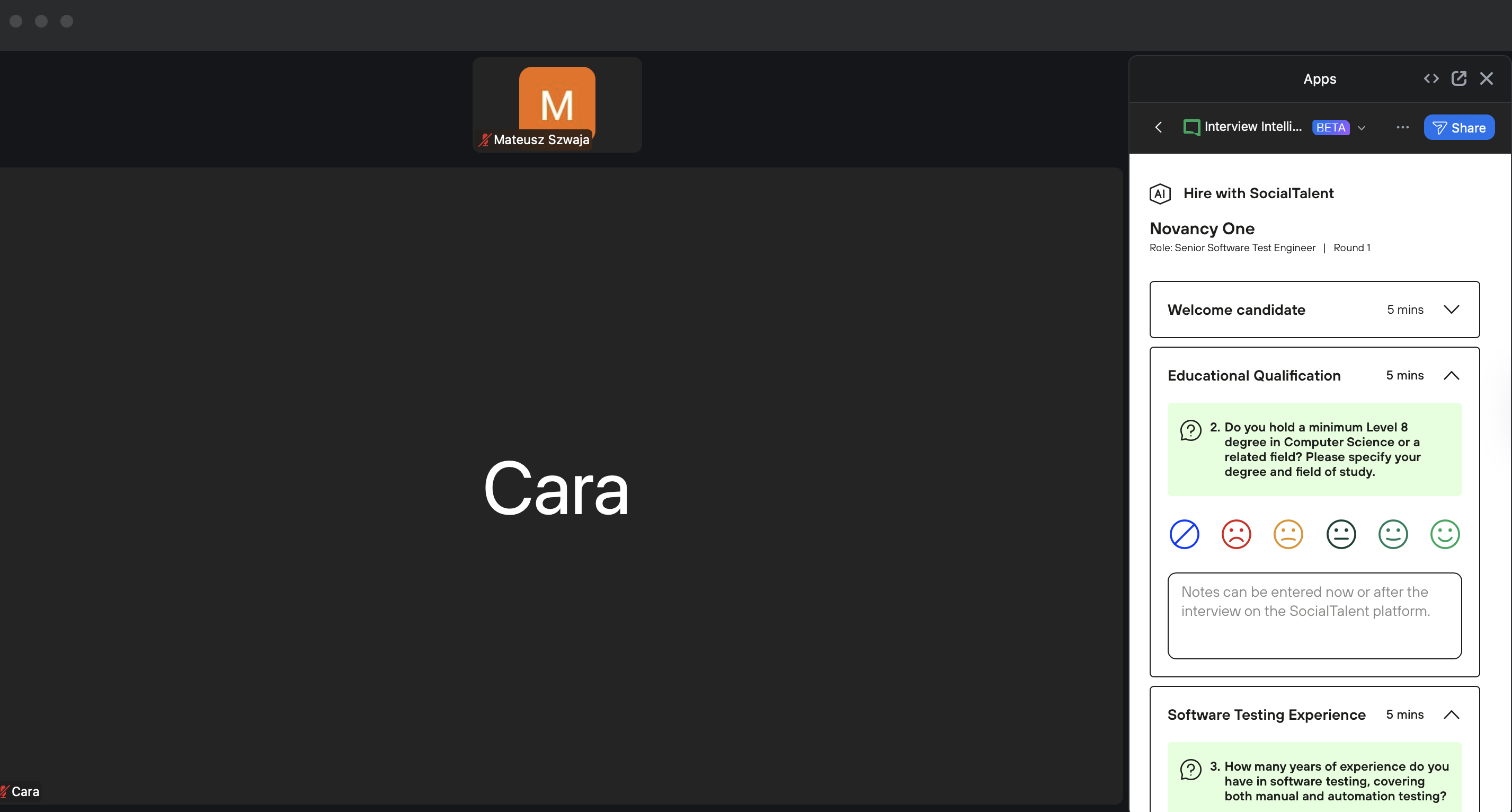
Notes and feedback are saved automatically.
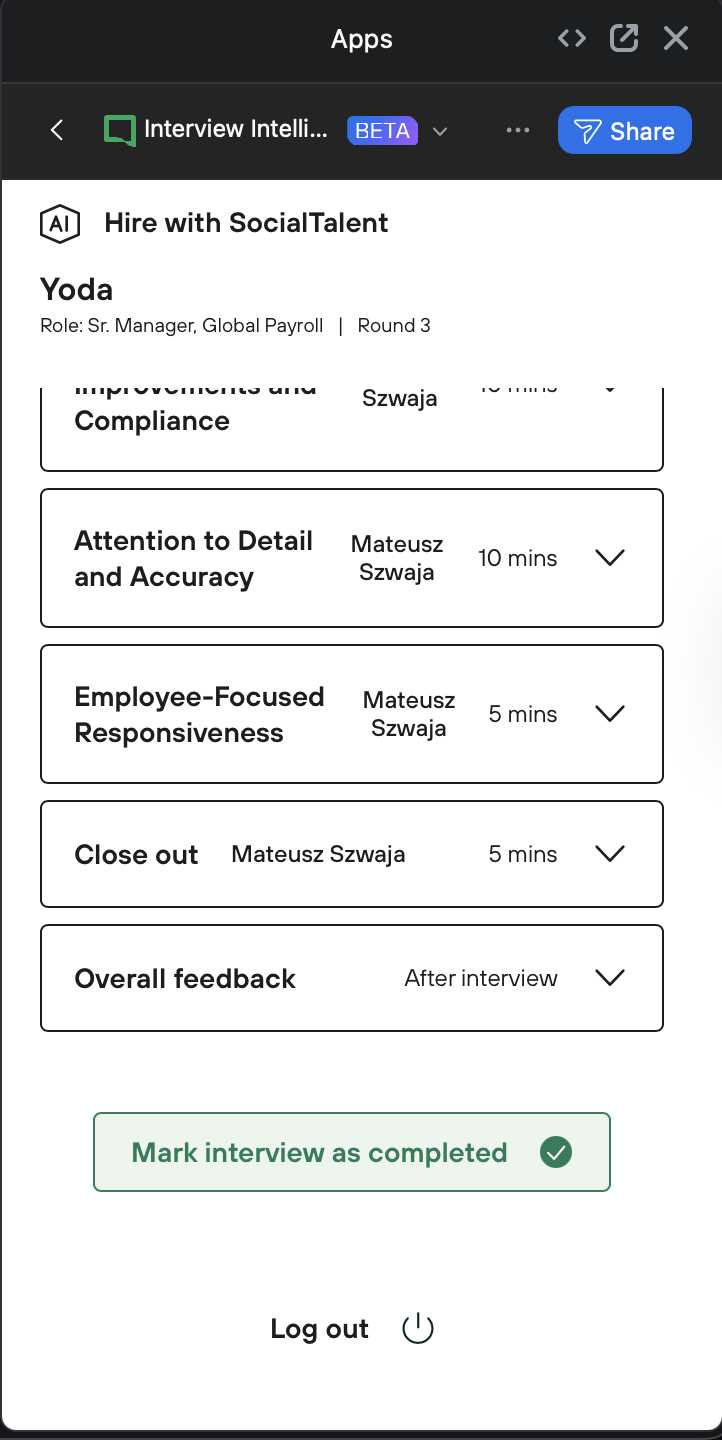
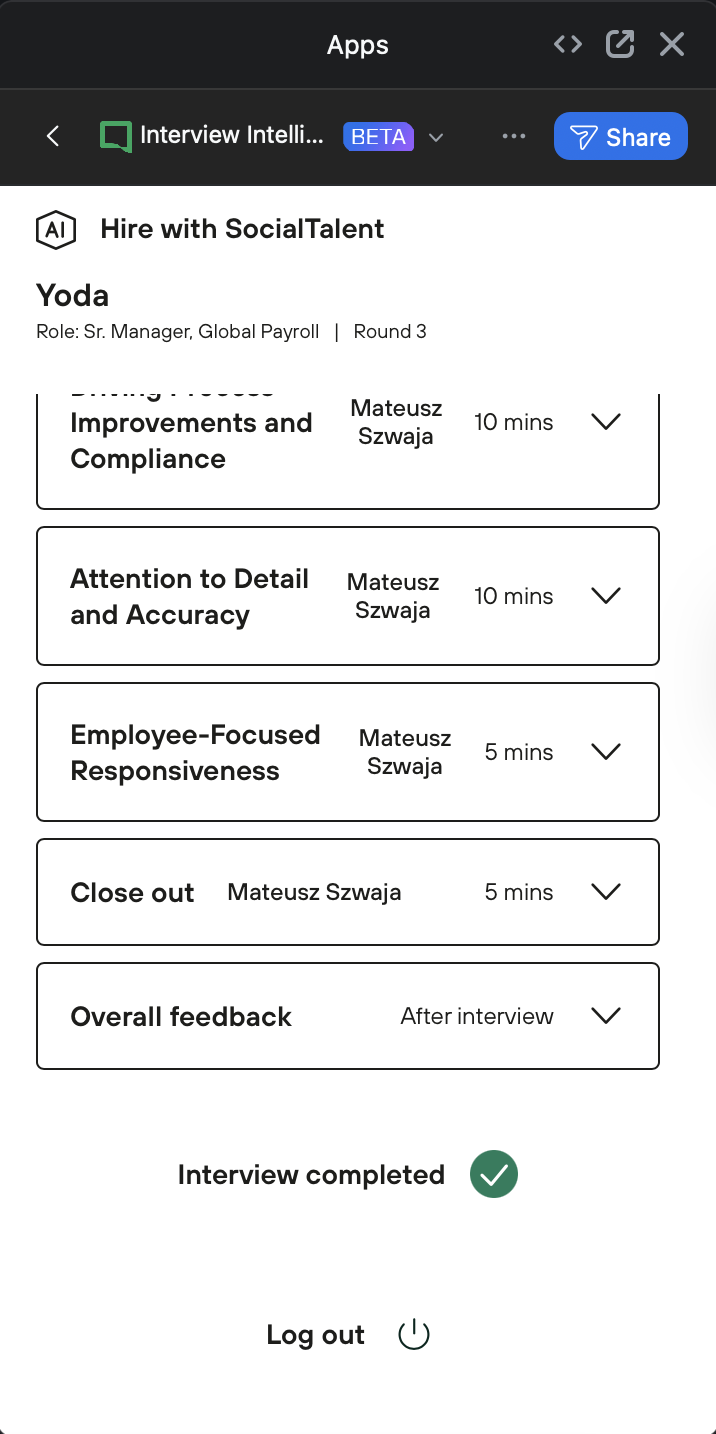
Complete the interview
When the interview is finished:
-
Review notes and feedback
-
Click Mark interview as completed
Log out (optional)
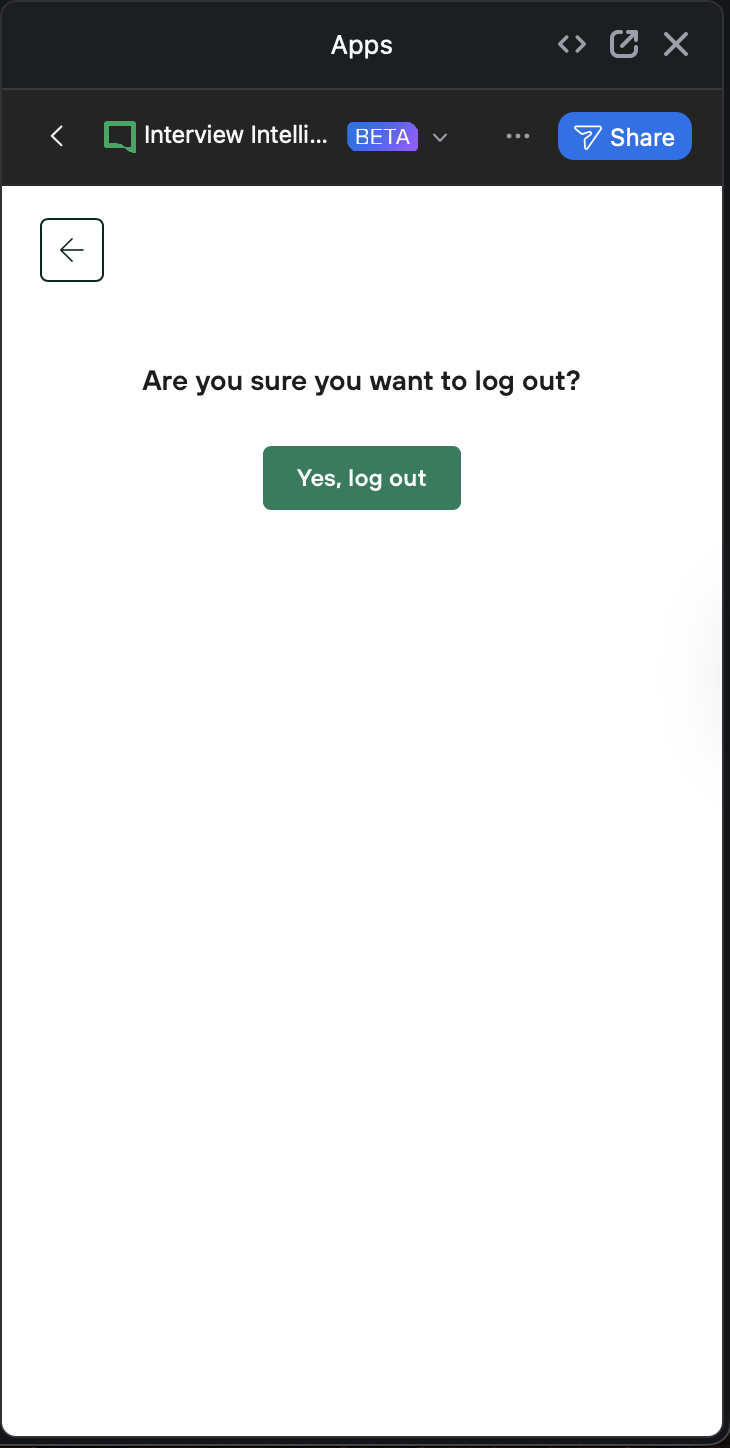
To log out of the Zoom app:
-
Click Log out
-
Confirm the action
-
Or simply close the meeting and Zoom App.
A message will advise you to restart the Zoom App to log back in.
Next steps
After completing the interview, you can:
-
Review recorded interviews (if consent was given)
-
Access notes and feedback
-
Continue evaluation and hiring decisions
See also: