
Running interviews inside Microsoft Teams
This article explains how to use the interview plan during a live Microsoft Teams interview.
Launch Interview Intelligence in a Teams call
-
Start or join a Microsoft Teams call
-
Open the Interview Assistant from the Teams App panel
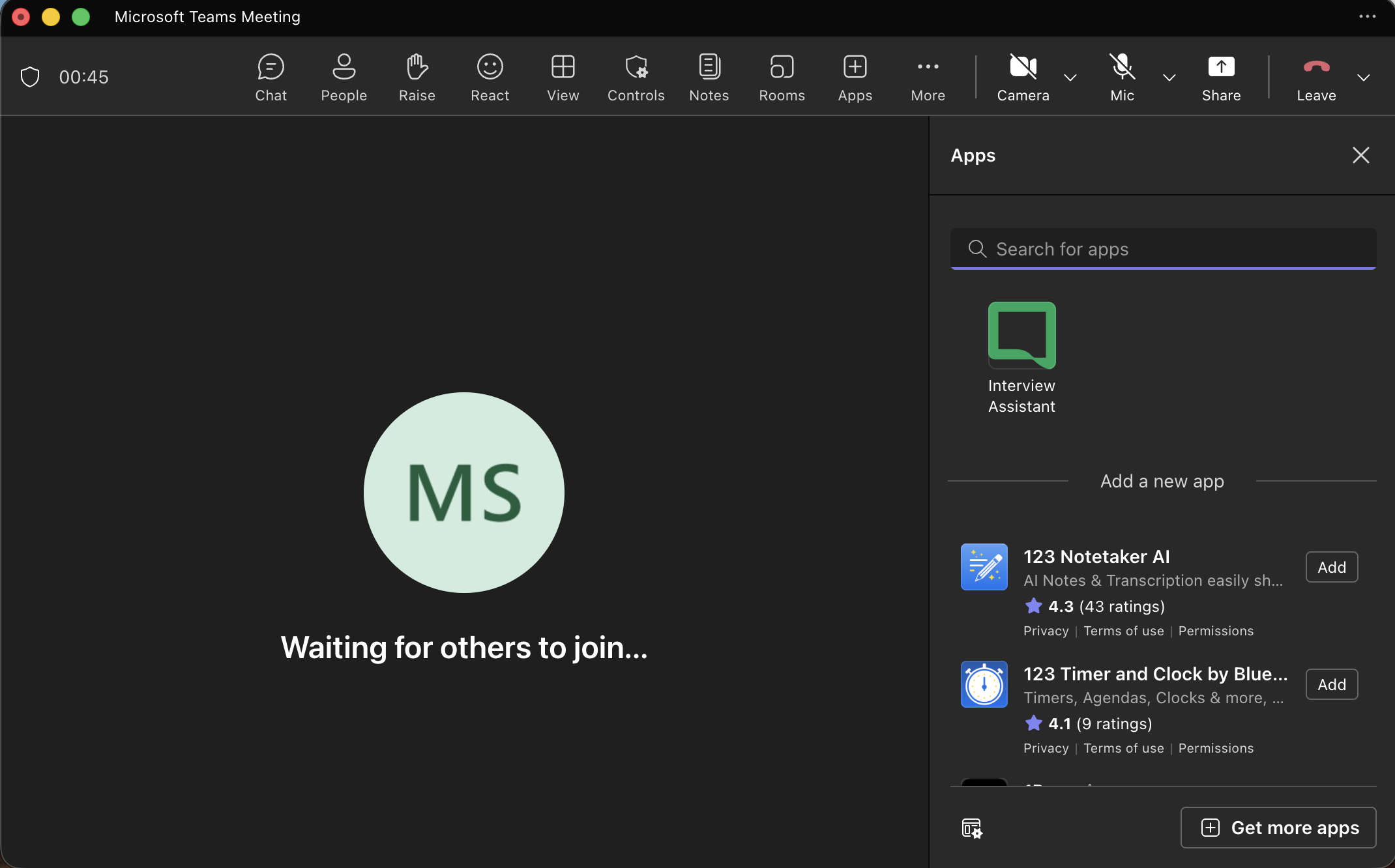
-
Select the relevant interview plan
The interview plan opens inside the call.
View the interview agenda
During the interview, interviewers can:
-
view interview stages and questions
-
follow the structured interview flow
-
move through questions in real time
This helps keep interviews consistent and on track.
Capture interview feedback
During the call, interviewers can:
-
add notes per question
-
score candidate responses
-
update feedback during or after each stage
Feedback is saved automatically.
Capture candidate consent for recording
Before recording:
-
confirm candidate consent
-
record the consent status in the interview
Consent is stored with the interview record.
Invite the recording bot
If recording is required:
-
invite the recording bot from within the app
-
the recording is automatically linked to the interview
After the interview
After the call, interviewers can:
-
review notes and scores
-
complete remaining feedback
-
finalise their interview stages