
You can keep track of your achievements under the My Learning Progress → Latest Badges and Certificates.
Step 1: Open your Achievements
-
Log in to your SocialTalent account.
-
Open the main navigation menu.
-
Select My Learning Progress.
-
Click Achievements.
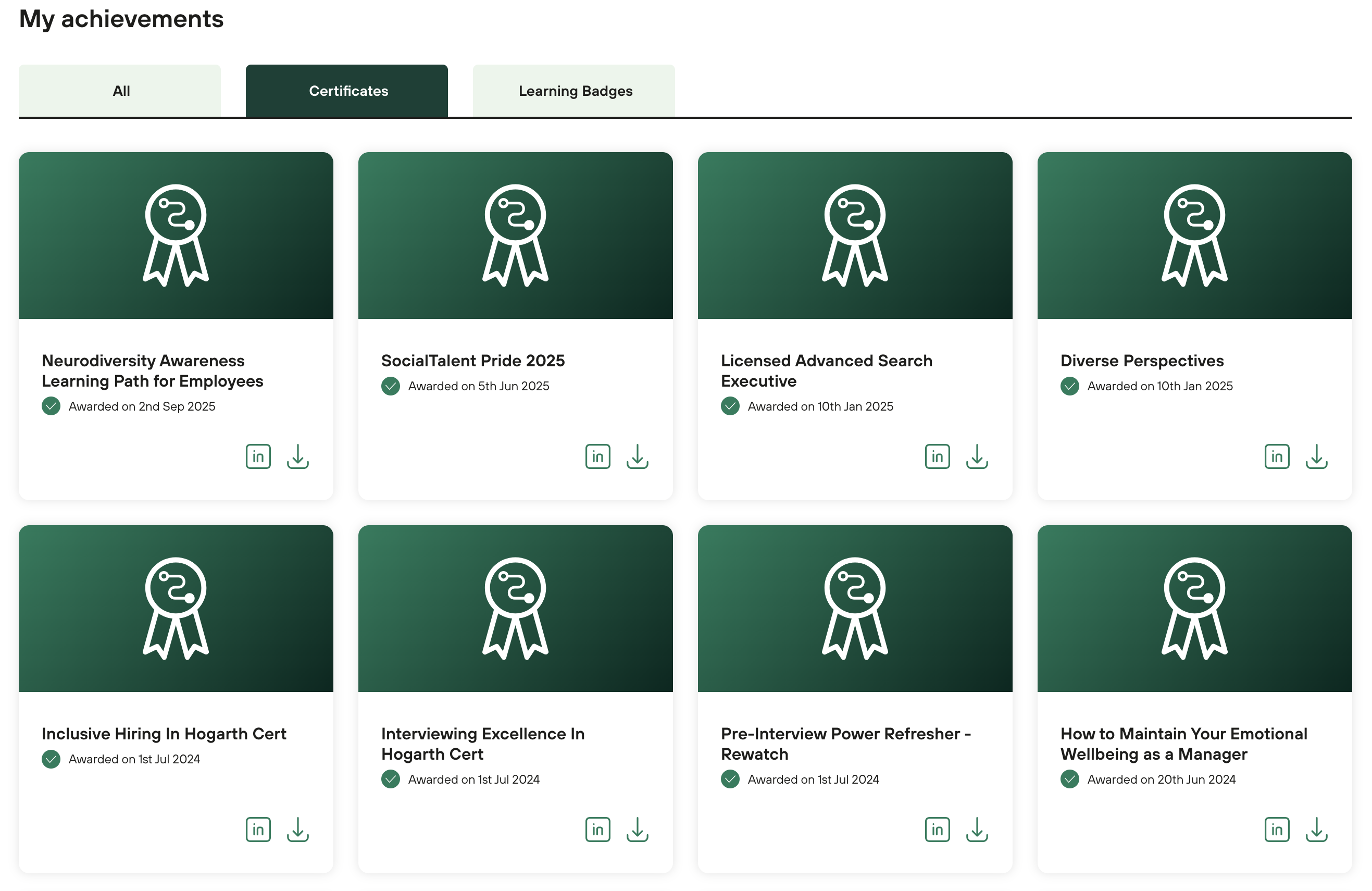
Here you’ll see all the certificates and learning badges you’ve earned.
Step 2: Understand what you’re seeing
Your Achievements page is divided into tabs:
-
All – shows everything you’ve earned
-
Certificates – formal learning path certificates
-
Learning Badges – badges awarded for completing specific missions
Each achievement card shows:
-
The name of the course or learning path
-
The date it was awarded
-
Icons for sharing to LinkedIn or downloading
Step 3: Download your certificate or badge
To download a certificate or badge:
-
Find the achievement you want.
-
Click the download icon on the card.
-
Your certificate or badge will download as a file that you can save or share manually.